
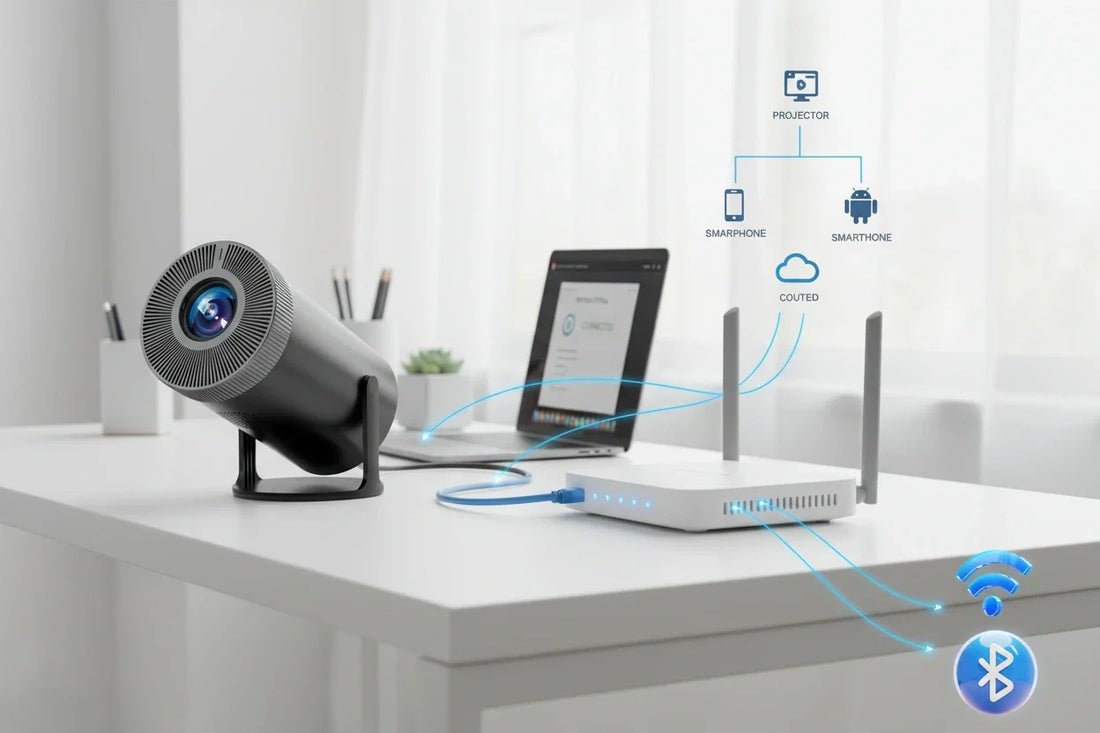
Why Your Projector Won't Connect to Wi-Fi and How to Fix It | Android TV Settings Troubleshooting Guide
Aiden TsangShare
📌 3 Steps to Try First: ① Restart your projector and router → ② Re-enter your password → ③ Switch to the 2.4GHz band. These three steps often resolve many Wi-Fi connection issues.
Quick Reference Guide for Wi-Fi Connection Problems
| Symptom | Most Common Cause | First Thing to Try |
|---|---|---|
| SSID not displayed | Too far away, 5GHz not supported | Move closer to the router, choose 2.4GHz band |
| Password error | Incorrect password entry | Reconfirm password and re-enter |
| Stuck on "Connecting" | Temporary router glitch | Restart the router |
| Connected but slow communication | Distance, obstacles, congestion | Move closer to the router, switch to 5GHz band |
| Frequent disconnections | Signal interference, distance | Change router placement |
| Used to connect but no longer does | IP address conflict, settings change | Reset network settings |
Detailed Troubleshooting by Symptom
🔴 Symptom ① Wi-Fi SSID (network name) not displayed
Main Causes: Projector and router are too far apart / 5GHz band SSID not displayed / Router signal is weak
Solutions:
- Move the projector closer to the router (ideally in the same room)
- Look for the 2.4GHz band SSID (5GHz bands have difficulty passing through walls)
- Restart the router (turn off the power, wait 30 seconds, then restart)
- Turn the projector's Wi-Fi setting off once, then turn it back on
- Restart the projector
🔴 Symptom ② Password error preventing connection
Main Causes: Incorrect password entry / Case sensitivity error / Password has been changed
Solutions:
- Reconfirm the password on the router itself or in the router's settings interface
- Enter uppercase, lowercase letters, numbers, and symbols accurately (pay special attention when using a remote control)
- Try connecting via smartphone tethering (to check if the issue is with the router)
- Connect using the router's WPS button (if the router supports WPS)
🔴 Symptom ③ Stuck on "Connecting" or times out
Main Causes: Temporary router glitch / DHCP server issue / IP address conflict
Solutions:
- Turn off the router's power, wait 30 seconds, then restart it
- Restart the projector
- In the projector's Wi-Fi settings, "forget" or "delete" the corresponding SSID, then reconnect
- Reset the projector's network settings
- Manually set the IP address (explained later)
🔴 Symptom ④ Connected but video buffers or is slow
Main Causes: Insufficient Wi-Fi speed / Signal interference / Distance from router or obstacles
Solutions:
- Switch to the 5GHz band SSID (faster speed and less interference)
- Move the projector closer to the router
- Reduce obstacles between the router and walls/appliances
- Temporarily reduce Wi-Fi usage on other devices
- Restart the router
🔴 Symptom ⑤ Frequent Wi-Fi disconnections
Main Causes: Signal interference / Distance from router / Projector's power saving settings
Solutions:
- Check the projector's power saving/sleep settings (ensure Wi-Fi isn't automatically turning off)
- Change the router's placement (move away from microwaves, cordless phones)
- Switch to the 5GHz band (less interference)
- Update the router's firmware to the latest version
Choosing Between 2.4GHz and 5GHz Bands
📶 2.4GHz Band
- Easily passes through walls and obstacles
- Connects well over long distances
- Susceptible to interference from microwaves, etc.
- Slower speed than 5GHz
Suitable for: Rooms far from the router or with many walls
📶 5GHz Band
- Faster speed (ideal for 4K video)
- Less interference and more stable
- Weak against walls and obstacles
- Best for locations close to the router
Suitable for: Same room as the router, 4K video streaming
💡 Aestiquo P1 supports Wi-Fi 6: Wi-Fi 6 (802.11ax) is the latest high-speed Wi-Fi standard. When combined with a Wi-Fi 6 compatible router, it allows for smooth, uninterrupted playback of 4K HDR content.
How to Manually Set an IP Address
If you're stuck on "Connecting", manually setting the IP address might resolve the issue.
Open the projector's settings menu
Using the remote, select "Settings" → "Network" → "Wi-Fi".
Long-press the SSID to connect to and open "Advanced Settings"
Select the SSID to display advanced settings options.
Change "IP Settings" to "Static"
Switch from "DHCP" to "Static".
Enter IP Address, Gateway, and DNS
Set within the IP address range confirmed in your router's management screen. Example: IP Address "192.168.1.100", Gateway "192.168.1.1", DNS "8.8.8.8"
Select "Connect" to attempt connection
Save the settings and try connecting.
How to Reset Network Settings
Open the Settings menu
Select "Settings" using the remote.
Select "Device Preferences" → "Reset"
Choose the option to reset only network settings.
Reconfigure Wi-Fi
After the reset, configure Wi-Fi settings from the beginning.
📶 Aestiquo P1 Wi-Fi Performance
- Wi-Fi 6 (802.11ax) compatible: High-speed, stable connection with the latest standard
- Supports 2.4GHz/5GHz: Choose the optimal band for your environment
- 4K HDR streaming compatible: Smooth playback of Netflix and YouTube 4K without interruptions
- Android TV 13.0 built-in: Intuitive and easy Wi-Fi setup
Frequently Asked Questions
What should I do first if my projector won't connect to Wi-Fi?
First, restart both your projector and router. Then, recheck and re-enter your password. If it still doesn't connect, try switching to the 2.4GHz band SSID.
Should I connect to 5GHz or 2.4GHz?
If you are in the same room as the router or close to it, the 5GHz band is faster and more stable. If you are far from the router or there are many walls, the 2.4GHz band is more likely to connect. The 5GHz band is recommended for 4K video streaming.
It's difficult to enter the Wi-Fi password with the remote.
For Android TV models (Aestiquo P1/Q1), you can use the Gboard keyboard app on your smartphone to enter the Wi-Fi password. Also, if your router supports WPS, you can easily connect using the WPS button.
Is a Wi-Fi 6 compatible router necessary?
No, a Wi-Fi 6 compatible projector can also connect to older Wi-Fi 5 (802.11ac) or Wi-Fi 4 (802.11n) routers. While combining with a Wi-Fi 6 compatible router provides maximum performance, it can still be used sufficiently with older routers.
My projector's Wi-Fi connection frequently disconnects.
The Wi-Fi might be automatically turning off due to power-saving settings. Check the power-saving and sleep settings in the menu. Also, moving the router away from microwaves and cordless phones can reduce signal interference.
Summary
- First steps: Restart → Re-enter password → Switch to 2.4GHz band
- SSID not visible: Move closer to router, choose 2.4GHz band
- Stuck on connecting: Restart router, manually set IP address
- Video buffering: Switch to 5GHz band, move closer to router
- Frequent disconnections: Check power-saving settings, move away from interference sources
*The information in this article is current as of July 2026. Wi-Fi setup procedures may vary depending on the model and router.


