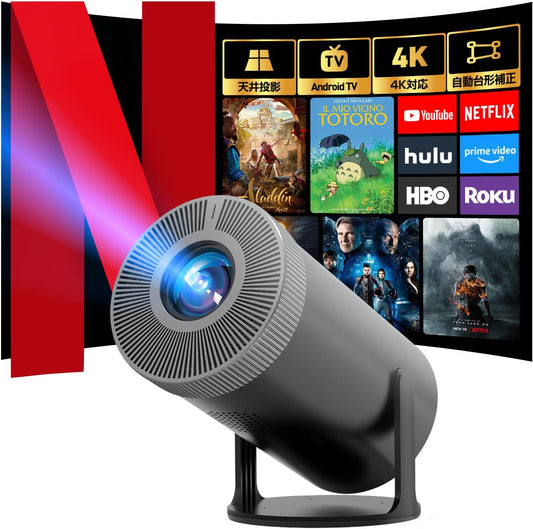
How to Choose a Home 1080p Projector: Key Points for Installation, Brightness, and Connectivity
AestiquoShare
Many people want to enjoy movies and games on a big screen but worry about things like, "Can I project in a small room?", "Is it easy to see during the day?", or "Can I play videos from my smartphone?" The term "1080p" alone doesn't tell you much about real-world image quality or usability. Here, we've organized the key factors to consider for home use, from how to read specification tables to the steps for checking setup and connectivity.
First, what "1080p" actually means
1080p generally refers to Full HD video with 1920×1080 pixels. However, just because a product page says "1080p support," it might only mean that it can accept a 1080p signal. If you want to compare the actual detail of the image, check the native resolution (the actual number of display pixels). Even if a model can input a Full HD signal, the image will be downscaled if the native resolution is lower.
The difference in resolution is more noticeable with text-heavy documents or game screens, while for movies, the impression changes depending on viewing distance and projection size. The fastest way to decide is to first determine what you want to project, and then judge the image quality required. The image quality of streaming services also depends on your subscription plan, connection speed, playback device, and content distribution conditions.
Choosing based on room conditions: Projection distance, screen size, and placement
Before purchasing, measure the width of the projection wall, the distance from the lens to the wall, and the location of power outlets. Also, check if the wall is white and flat, and how much light enters during the day. If you use a screen, you will need space for that as well. Use the projection distance chart for each model to determine if your desired screen size is achievable.
The throw ratio is "distance from lens to screen ÷ image width." For example, if the throw ratio is 1.5 and you want an image width of about 2.2m, the calculated distance is about 3.3m. However, the actual required distance varies depending on lens position, zoom range, and installation conditions. Since inches represent the screen diagonal, do not compare that directly with the width of your room.
| Setup Condition | Priority Checks | Common Oversights |
|---|---|---|
| Studio/Bedroom | Required distance, stand height, fan noise | Not enough distance from placement to wall |
| Living Room | Daytime light blocking, screen size, audio output | Image looks washed out by window light |
| Tabletop (store away) | Focus, keystone correction, ease of wiring | Repositioning each time is a hassle |
| Ceiling Mount | Mount compatibility, power/wiring, alignment | Cannot reach cables after installation |
Keystone correction is a feature that adjusts the screen shape when projecting from an angle, but using it heavily can affect image quality and effective pixel count. Install the unit directly in front of the screen whenever possible, and check if lens shift or optical zoom is available if needed. Short-throw and ultra-short-throw models are convenient, but since they can make wall imperfections more visible, consider the condition of the installation surface as well.
Brightness and contrast: Focus on environment over numbers
Brightness is measured using different standards such as ANSI lumens and ISO lumens. Avoid directly comparing values labeled simply as "lumens" across different models. Confirm whether the values were measured using the same standard, and if possible, refer to video examples under conditions similar to your intended room.
If you watch with the curtains open during the day, even a bright model might not look like a TV. Environmental adjustments like reducing the projection size, using blackout curtains, or selecting a specific screen are also effective. If you primarily watch movies at night, you will get more satisfaction by prioritizing black levels and shadow detail rather than just maximum brightness.
Contrast ratio is a guide for the difference between light and dark, but you cannot simply compare figures measured using different methods. Similarly, color reproduction changes depending on whether you prioritize a bright mode or a mode that emphasizes natural colors. It is practical to look for reviews or usage examples that match your needs, such as "watching sports during the day," "movies at night," or "readability of subtitles."
Connectivity: Separating "signal detection" from "successful playback"
If you are using game consoles, PCs, DVD players, or streaming devices, first check the compatibility between their output terminals and the projector's input terminals. Even if both have HDMI, the resolution, audio formats, and copyright protection standards are separate issues. If connecting a DVD player, check the output terminals on the player side. Note that DVD region support and Blu-ray playback support are different things.
- HDMI: The standard way to connect video equipment. Check the required cable length and audio output destination.
- USB: Check if it is for power supply or media playback, and confirm supported file formats.
- Wi-Fi/Mirroring: Check smartphone OS, supported standards, and if being on the same network is required.
- Bluetooth: Receiving and transmitting are different features. Confirm if the projector can send audio to external speakers.
Even if you can mirror your smartphone screen, some streaming apps may not play video due to copyright protection. If you mainly watch Netflix, etc., check the availability of official apps, authentication, and whether you can use an external streaming device. Simply seeing an app name on a product page does not guarantee that all content will play.
Avoiding regrets regarding games, sound, and long-term use
If you play games, check for input lag and supported refresh rates in addition to image quality. Lag can vary depending on image modes or keystone settings. For games where reaction speed is crucial, prioritize information measured at your intended resolution/settings, and check for a dedicated game mode.
Built-in speakers are convenient, but clarity depends on room size and placement. If you plan to use external speakers, check for audio output terminals or Bluetooth transmission support. Bluetooth audio can have latency, so consider wired connections for gaming. Also, since fan noise can be distracting in quiet scenes, consider the distance from your seating position.
Light source methods like LED, laser, or lamp affect replacement costs, brightness degradation, and maintenance. The "light source life" in a catalog is a guide under specific conditions and is not a guarantee that the entire unit will function for that long. It is safer to check before buying whether filter cleaning is required, the availability of consumables, and warranty coverage.
FAQ
Q. Are "1080p support" and "native 1080p" the same?
No. "1080p support" may simply mean the unit can receive a 1080p signal. Check the native resolution for the actual number of pixels displayed.
Q. Can I use it in a bright living room?
Even if you can, the image will be harder to see as external light increases. After checking the measurement standard for brightness, consider light-blocking or adjusting the screen size.
Q. Can I watch streaming services by mirroring my smartphone?
Not necessarily. Due to copyright protection and device compatibility, the screen may appear black. Check the app's supported content or use an external streaming device.
Q. What should I do if my space is limited?
Compare the measured distance to the wall and your desired image width against each model's projection distance chart. Even with short-throw models, wall condition and placement height will affect the projection.
Finally, once you have decided on the content you want to watch and the conditions of your room, the order in which to check the spec table becomes clear. Choosing a unit that fits your regular setup and connection habits is the best shortcut to long-term enjoyment.