How to Quiet Projector Fan Noise: Causes and Solutions for Placement and Settings
Aiden TsangShare
If the projector's operating noise is distracting during quiet scenes in a movie, it may be caused by the cooling fan running at high speed, insufficient clearance around the intake or exhaust vents, the unit being too close to fabric or walls, or the effects of brightness settings or room temperature. Instead of resorting to disassembly, perform these safe checks one by one.
Something that often surprises first-time projector users is not the image, but the "sound." Even if it isn't loud enough to drown out movie dialogue, the fan's whirring can become noticeable in scenarios such as using it in a bedroom, watching a quiet film, or projecting for a short time before bed.
Projectors require cooling to dissipate heat from the light source and internal components. If your only goal is complete silence, you risk poor heat dissipation, which can put strain on the unit. The key is to reduce unnecessary noise while maintaining necessary cooling. This article covers how to distinguish between types of sounds, how to review your installation and settings, precautions for using external speakers, and when to consider repairs.
1. What types of operating sounds do projectors make?
A constant "whooshing" sound
If a steady wind-like sound continues while the power is on, the cooling fan is likely operating normally. The volume of this sound varies depending on room temperature, brightness mode, usage duration, and installation location. If this sound has persisted since purchase and there are no issues with the image or unit operation, first check the ventilation and settings.
Sound that suddenly becomes louder
The fan noise may temporarily increase immediately after startup or after displaying a bright image for a long time. The cooling may intensify under conditions such as high room temperature, trapped exhaust, dust buildup in the intake, or objects placed nearby. Before continuing use, confirm that the area around the unit is not obstructed.
"Rattling" or "Grinding" sounds
If you hear periodic abnormal noises, vibrations, or scraping sounds that differ from the wind noise, you need to check the condition of the fan or internal components. Do not strike the unit, disassemble it to repair it yourself, or ignore it; turn off the power, let it cool down, and consult your retailer or the manufacturer's support.
2. Five causes for increased noise
| Cause | Common situations | What to check first |
|---|---|---|
| Insufficient ventilation | Behind walls/shelves, on fabric | Is there space around intake/exhaust vents? |
| High room temperature | Summer, near windows or heaters | Avoid direct sunlight/heat, ventilate the room |
| High brightness settings | Long projections in bright mode | Try energy-saving or standard modes at night |
| Dust accumulation | Uncleaned for long periods, floor placement | Check outer intake areas per the manual |
| Surface vibration | Light stands, tilted shelves, cables touching | Place on a stable, flat surface; clear obstructions |
When operating noise is loud, observe not just the volume, but "when" it gets louder. Whether it occurs right after power-on, after a certain time, or only when displaying bright images will determine where you should check. Recording a short clip with your smartphone can make it easier to explain the situation when consulting support.
3. Safe and easy noise reduction measures
- Turn off the power and let it cool completely. Do not move the unit or touch the vents immediately after use; follow the manual's shutdown procedure and allow time for cooling.
- Clear items from the surroundings. Ensure that walls, curtains, cushions, or storage boxes are not blocking the intake or exhaust vents.
- Move to a stable stand. Do not place it on futons, sofas, or soft cushions; use a flat, stable surface that can support the unit.
- Avoid heat sources and direct sunlight. Do not use it near windows, heaters, or inside shelves where heat becomes trapped.
- Review your image mode. Check if you are using a brighter mode than necessary at night or in a dark room.
- Check for external dust. With the power off, clean only the areas permitted by the instruction manual.
- Perform a short test. Check if the sound has changed using the same content, volume, and installation spot.
The most important thing to avoid for noise reduction is covering the vents with tape or fabric. Blocking exhaust to reduce noise will cause internal temperatures to rise, leading to sudden shutdowns or malfunctions. If you are building a soundproof box or enclosure, prioritize heat-dissipation design and the manufacturer's warnings.
4. Relationship between brightness settings and operating noise
A projector's brightness setting affects not only visibility but also power consumption and heat generation. While high brightness may be necessary in a bright room during the day, standard or energy-saving settings are often sufficient for a darkened bedroom at night.
Use "required brightness" as the standard for evening movies
Using maximum brightness in a dark room can make the screen feel glaring and cause the fan noise to stand out. Lower the brightness gradually while checking if you can still read subtitles and see details in dark scenes. Since the names and effects of image modes vary by model, keep a note of your original settings so you can easily change them back.
During the day, address room lighting before volume
If the image is too dark during the day, maximizing brightness may not be the best solution. Adjusting the room conditions—such as closing blackout curtains, preventing direct light from hitting the projection surface, or slightly reducing screen size—can help you avoid excessive settings.
5. How placement affects sound perception
Even with the same projector, the sound you hear varies greatly depending on where you place it. Placing it near walls or shelf boards can increase vibrations and reflections, making the sound seem louder than it actually is. If the unit is vibrating slightly on hard furniture, check your manual for permitted modifications and consider thin vibration-dampening measures that do not compromise stability.
When projecting onto the ceiling in a bedroom, it's tempting to place the unit near your head, but the closer the sound source is to your ears, the more noticeable even quiet fan noise becomes. If possible, move it further from your viewing position and place it where it won't pull on the cables. If placing it on a high shelf, ensure it is secure against falling and has room for ventilation; do not force it into hard-to-reach locations.
There is space around the unit, exhaust is not blowing directly against a wall, the stand is stable, the power cord doesn't cross walkways, and no fabric is covering the lens or vents. Fulfilling these five points alone will improve both safety and how you perceive the sound.
6. Precautions when using external speakers
When bothered by fan noise, some people think they should just turn up the volume using external speakers. While this can help make movie dialogue clearer, simply increasing the volume is not a complete solution. First, optimize your projector's placement and cooling, then add speakers as needed.
While Bluetooth speakers reduce cables, you must decide whether to connect to your Fire TV Stick, projector, or the speakers themselves; otherwise, audio may output to the wrong device. Wired connections require cable management. Because the desired audio timing differs by use (movies, games, music), check for latency and volume with a short clip after connecting.
7. Quietness points to check when choosing the Aestiquo P1
Aestiquo P1 Smart Projector
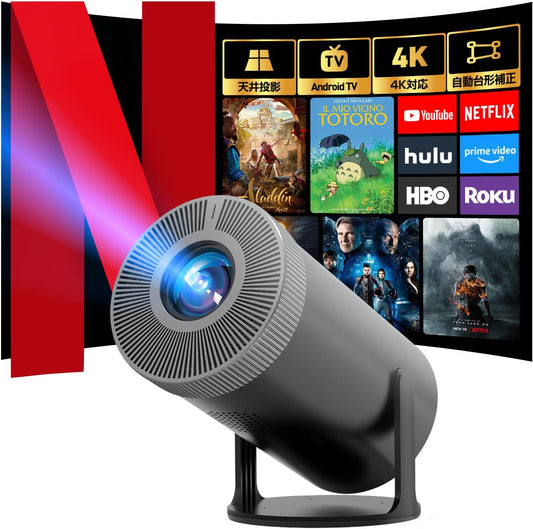
If you are looking for a projector to enjoy movies and videos at home, you might consider the Aestiquo P1. The product page notes features such as built-in Android TV, 4K support, and ceiling projection. Before purchasing, verify not just the specs, but also the latest information regarding brightness modes, installation, heat dissipation, and operating noise to ensure it suits your environment.
View Aestiquo P1 Product DetailsIf you prioritize quietness, check for information regarding operating noise in the product page or manual. When reading reviews, don't rely solely on the word "quiet." Perception varies by product depending on room size, viewing distance, installation spot, brightness settings, and usage time.
8. When to consult for repair or support
If you experience the following, stop using the unit and consult the retailer or manufacturer rather than repeating setting changes.
- Sudden metallic, grinding, or periodic abnormal noises that didn't exist before
- Unit is abnormally hot, smells like burning, or displays smoke or errors
- Image disappears or power shuts off after fan noise gets loud
- Overheat warning appears in a short time despite vents being unblocked
- Sound and malfunctions persist after cleaning and reviewing placement