

Aestiquo
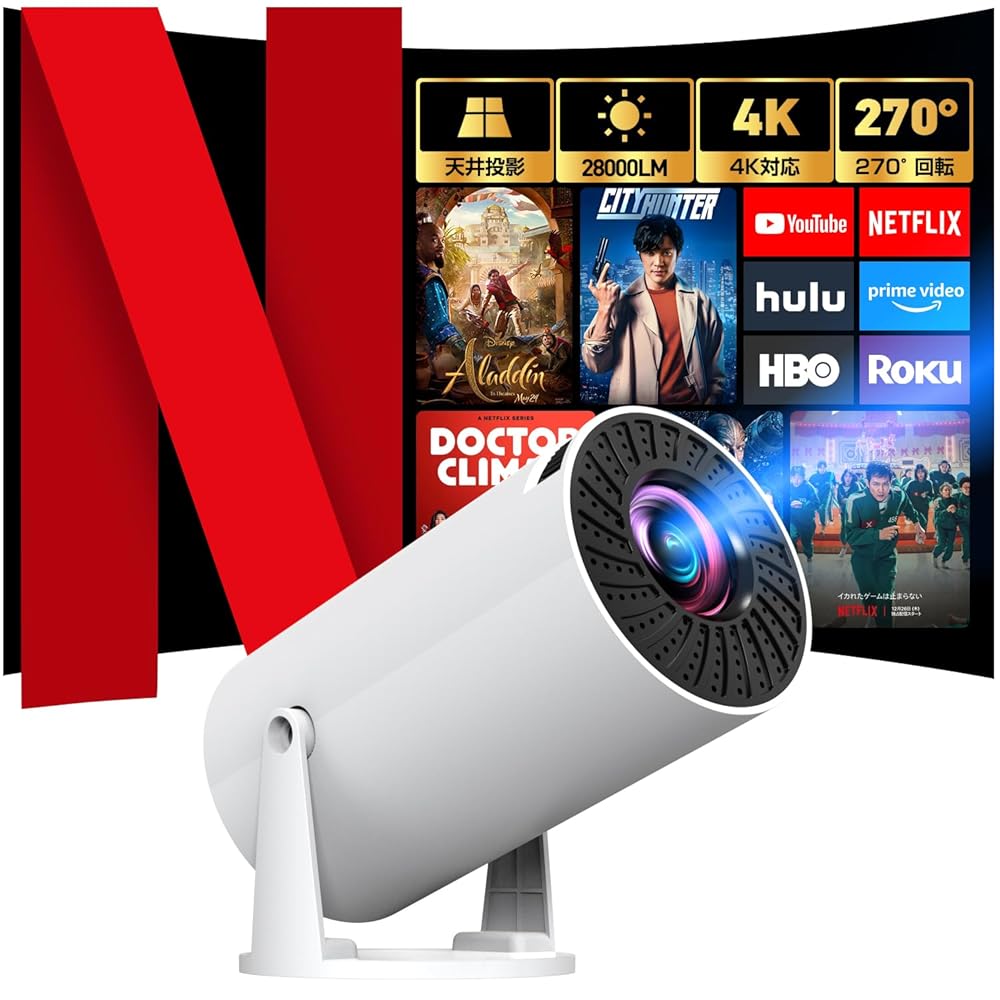
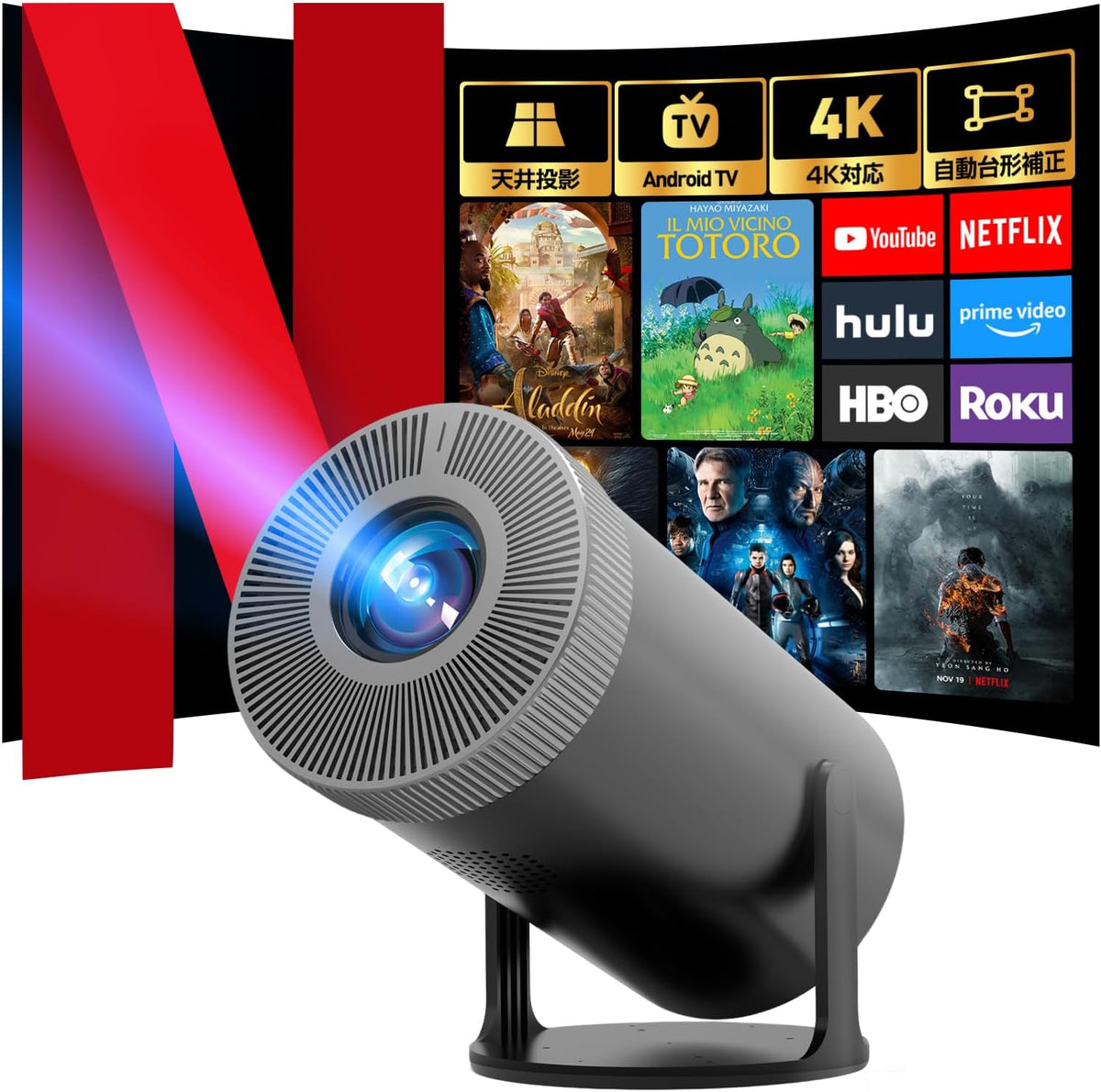
Smart Projector for Ceiling Projection & Home Theater|Aestiquo P1 with Android TV, 28000LM, 4K Support
Smart Projector for Ceiling Projection & Home Theater|Aestiquo P1 with Android TV, 28000LM, 4K Support
SKU:LHPJ010
79 in stock
Couldn't load pickup availability
- Free Shipping on Orders Over ¥3,000 in Japan
- 100% Secure Payment, Encrypted Protection
- 30-Day Money-Back Guarantee, perfect for gifts with peace of mind
share
AESTIQUO P1 / HOME THEATER
Turn a corner of your room
into a space for enjoying movies.
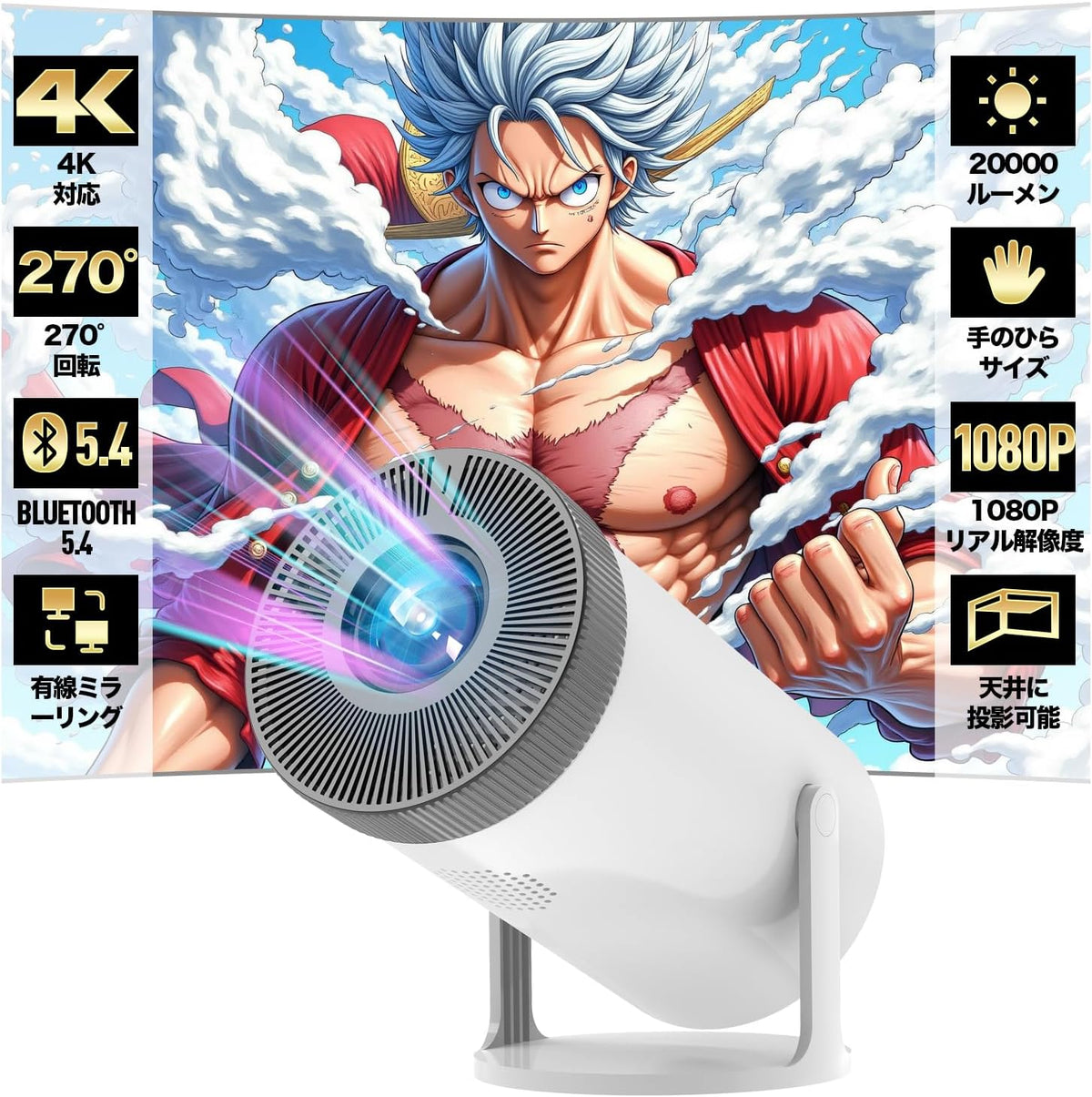
The P1 is a compact home projector featuring a cylindrical body and a rotating stand. Choose where to place it and what surface to project onto, and enjoy movies in your living room or bedroom.
At night, dim the lights and project images onto the wall. On weekends, connect compatible external devices and gather around the screen with your family. Rather than relying solely on the numbers, set up the projector to suit your room and how you plan to use it for the clearest picture.
First, create a space where you can see clearly
Relax with a wall projection
Project onto a flat, light-colored wall or a suitable screen. Dimming the surrounding lights makes it easier to see the contrast and subtitles.
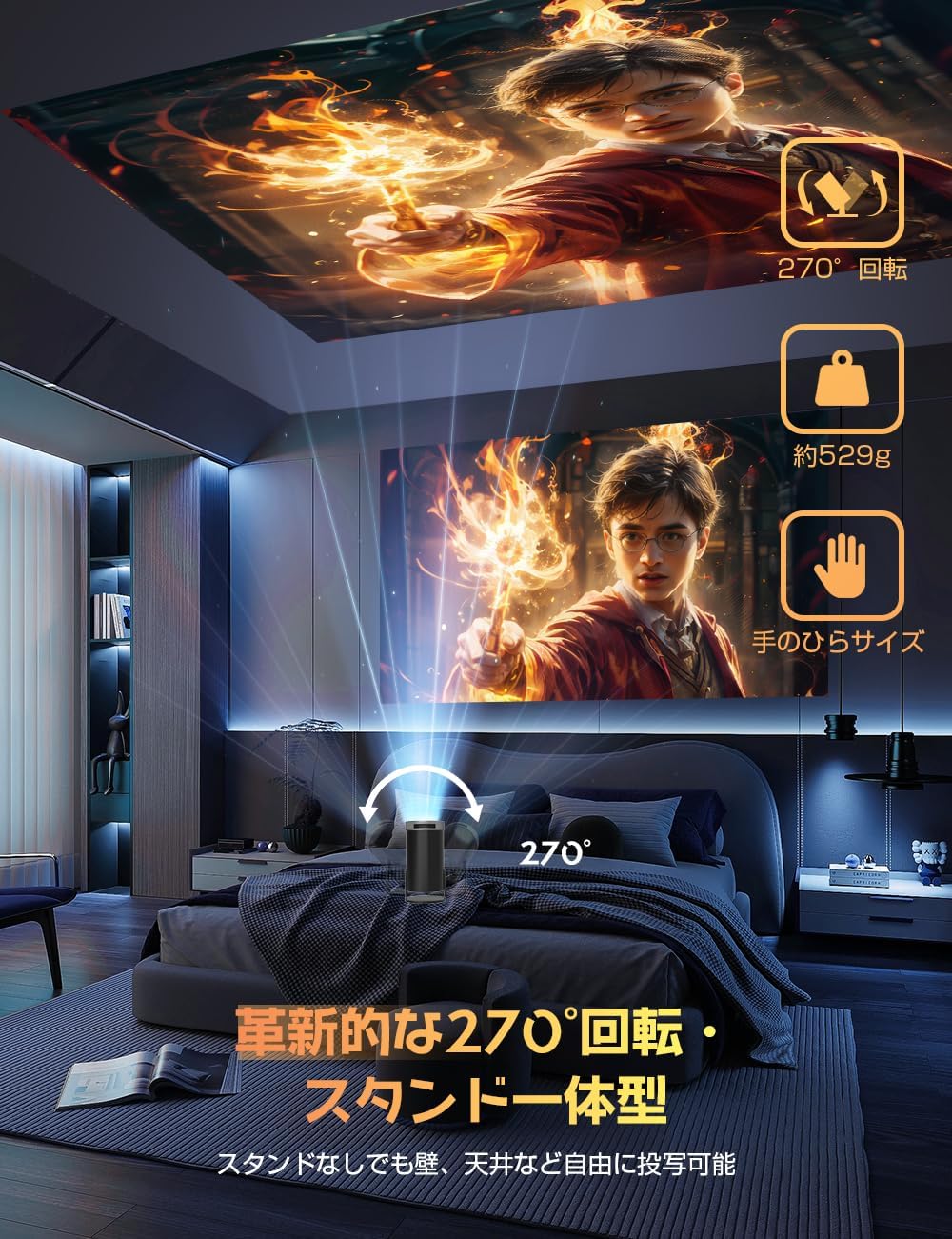
Project onto the ceiling
Place the projector on a stable surface and use the rotating stand to tilt the body upward. Check that it will not tip over, ensure there is enough space for the cables, and check the area around the air intake and exhaust vents.
This product is not designed to be mounted directly to a wall or ceiling. Ceiling projection is done from a tabletop setup. Do not place it directly on soft surfaces such as a bed or futon, and ensure proper ventilation.
Adjust the position, focus, and shape in order
01 / POSITION
Manually align the body
Use the stand to adjust the angle and position the projector as directly as possible toward the projection surface. The remote control does not rotate the body of the projector.
02 / FOCUS
Focus using the ring
Turn the focus ring to adjust the text and image outlines until they are easy to see. If you change the projection distance, check the focus again.
03 / KEYSTONE
Correct distortion with keystone correction
The instruction manual explains how to turn automatic vertical keystone correction on or off and use the remote control to select the four-corner adjustment points. If necessary, review both the position of the projector and the settings.
04 / SIZE
Set the screen to an easy-to-view size
Adjust the size using the projection distance and the built-in zoom function. The larger the image, the more it will be affected by ambient light and the projection surface, so use a size that suits your room.
Correction functions do not perfectly align images at every angle and distance. The screen size and distance charts are intended as guidelines, and adjustments will be necessary based on your actual setup.
Choose a connection method based on the content you want to watch
Connect external devices via HDMI input
Connect a compatible computer or HDMI output device, such as a TV stick, and switch the input source to HDMI. Check the power supply, output signal, and required cables for the connected device.
Play files from a USB flash drive
Connect a USB flash drive and select video, music, or photos from the input source or file screen. Even if the file extensions are the same, some videos and audio may not play depending on the codecs used.
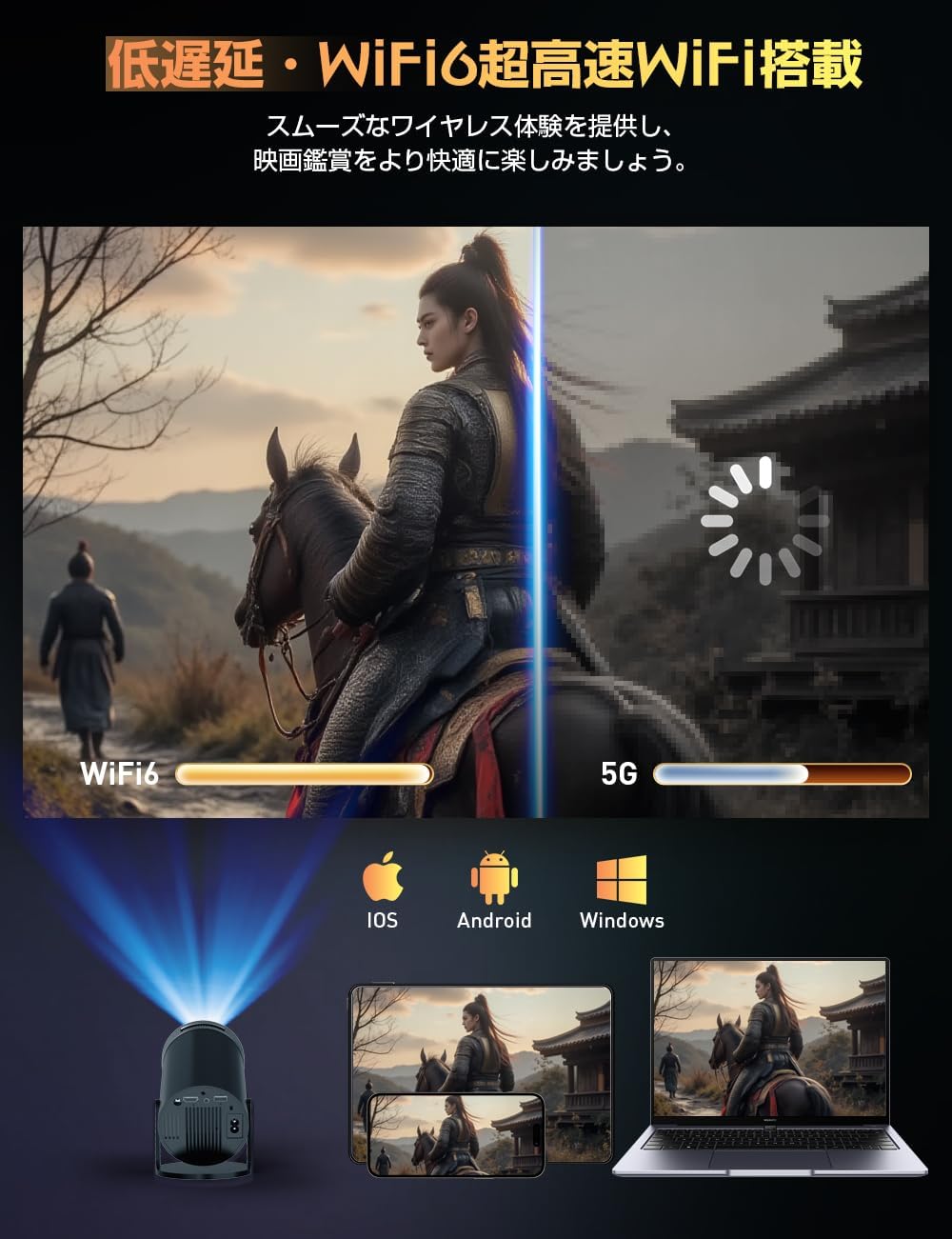
Share your screen via Wi-Fi
The instruction manual explains the procedures for AirPlay, Miracast, and tranScreen. Connect this device and your device to the same Wi-Fi network, and select the mirroring method supported by your device.
Connect audio devices
Search for and pair compatible speakers or earphones through the Bluetooth settings. If you use a wired audio jack, also check the specifications of the device you are connecting to.
Compatibility with all devices, apps, files, and external devices is not guaranteed. Bluetooth is a connection for audio devices, not a method for transmitting video. Connecting your smartphone via USB does not necessarily output video.
Conditions for watching video services
Whether you can install an app or play content depends on the service area, your subscription and account, the software version, and copyright protection requirements. Even if the device runs on the Android system, it does not guarantee access to all services.
If Netflix and other services do not display
The instruction manual explains that Netflix may not be available for projection due to copyright issues. Copyright-protected content may not display even when using screen mirroring. Consider connecting a compatible external TV stick via HDMI to watch the service you want.
External devices are sold separately. Please follow the compatibility requirements, internet connection, subscription, and power supply requirements for both the external device and the service. All services and video playback are not guaranteed.
Wireless speeds and latency vary depending on the network, router, surrounding radio waves, device, and content. If stability is important, you can also connect compatible devices via HDMI.
What to check before purchasing: how to understand image quality and specifications
The appearance of the image varies depending on the color and texture of the projection surface, lighting, distance, and screen size. This does not mean the image will always be clear during the day or in bright areas. Adjust the lighting and curtains to create an environment that suits your use.
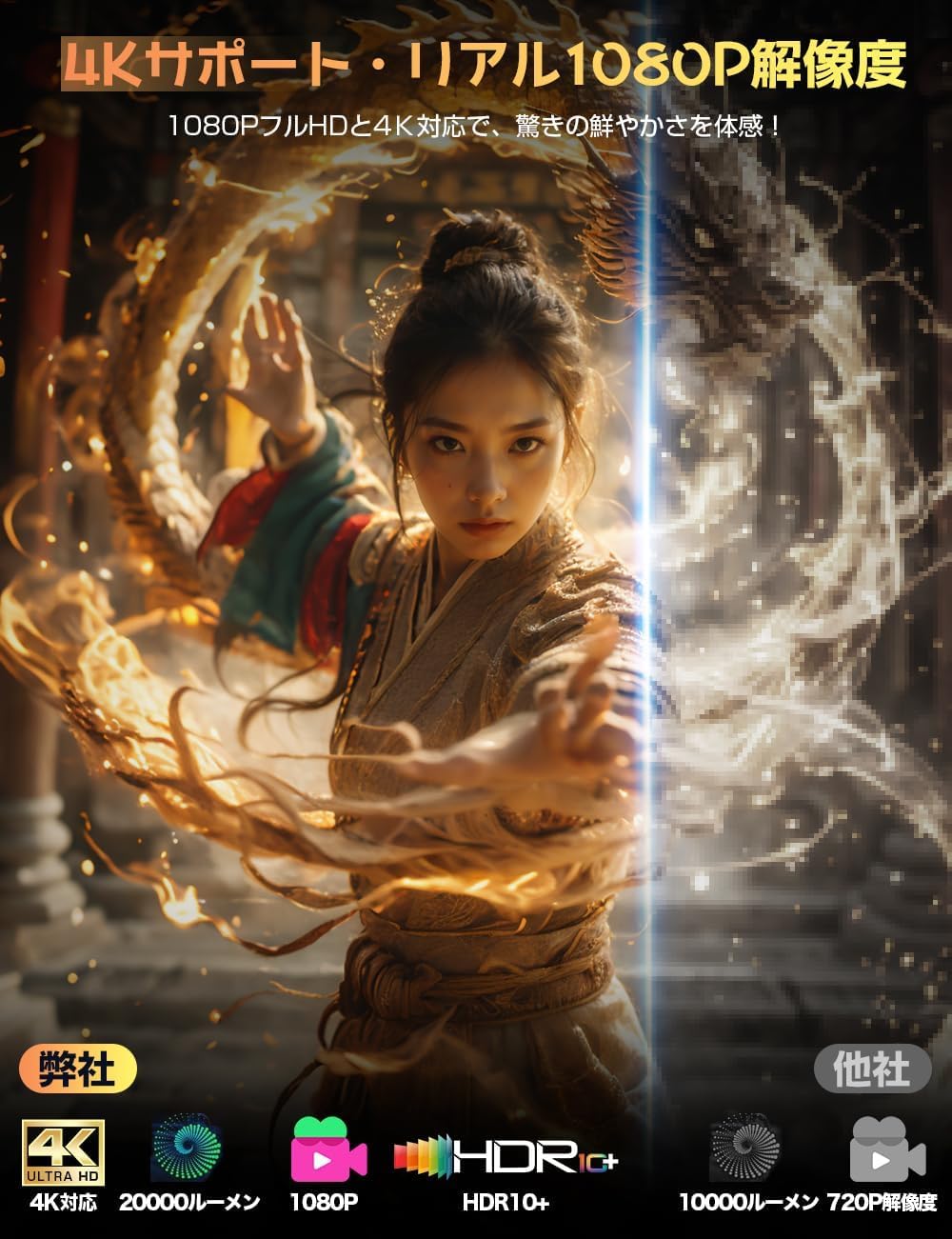
"4K compatible" does not mean native 4K resolution. Check the output of the external device and the input requirements supported by this device. When choosing a product, check the specifications of the selected variation, not just the numbers in the product name or images.
Basic configuration
Model: P1
Light source: LED
Projection method: LCD
Focus: Manual
Stand: Rotating
Connections and adjustments
HDMI and USB inputs
Audio jack and built-in speakers
Wi-Fi and Bluetooth settings
Vertical keystone correction and four-corner adjustment
Please check the color and appearance in the product selection area and each image. For information necessary to make a purchasing decision, such as the number of connection ports and wireless standard versions, please contact us about the specifications you select.
Accessories and preparation
The projector, power cable, remote control, and Japanese instruction manual. Please check the power supply components and included items for the specifications you select. Please prepare an HDMI cable and external playback device separately, according to the devices you plan to use.
The instruction manual states that remote control batteries are sold separately. Before use, check the included items and battery type, and follow the power connection and safety instructions.
Frequently asked questions
Can I mount it on the ceiling?
It is not designed for wall-mounted or suspended installations that require direct mounting. Place it on a flat, stable surface and use the stand to adjust the angle for ceiling projection.
Are focus and screen shape both automatic?
Focus is adjusted manually. Even after using automatic vertical keystone correction, you may still need to adjust the placement and four corners.
Can I connect it to any smartphone?
It depends on the mirroring method, OS, and app supported by your device. Wired connection also requires video output support on your device. Connection is not guaranteed for all models based solely on the model name.
What should I do if there is no sound when playing a video from a USB drive?
Check the volume, mute setting, and audio output destination. The instruction manual states that Dolby Audio codecs are not supported. Depending on the audio format of the file, only the video may play.
About the brand and support
This product is part of a product line based on AESTIQUO. Depending on the online sales channel, we also offer the sub-brands HAPPILAFF and Alprojec. They are manufactured under common quality standards and production management, and there is no difference in quality or after-sales service.
If you have trouble with connection or playback, please let us know your purchase information, the selected variation, connected devices, input source, and the symptoms you are experiencing. Please check the scope and conditions of the warranty in the information provided at the time of purchase and the warranty card.
関連資料:
製品取扱説明書(PDF)