

Aestiquo
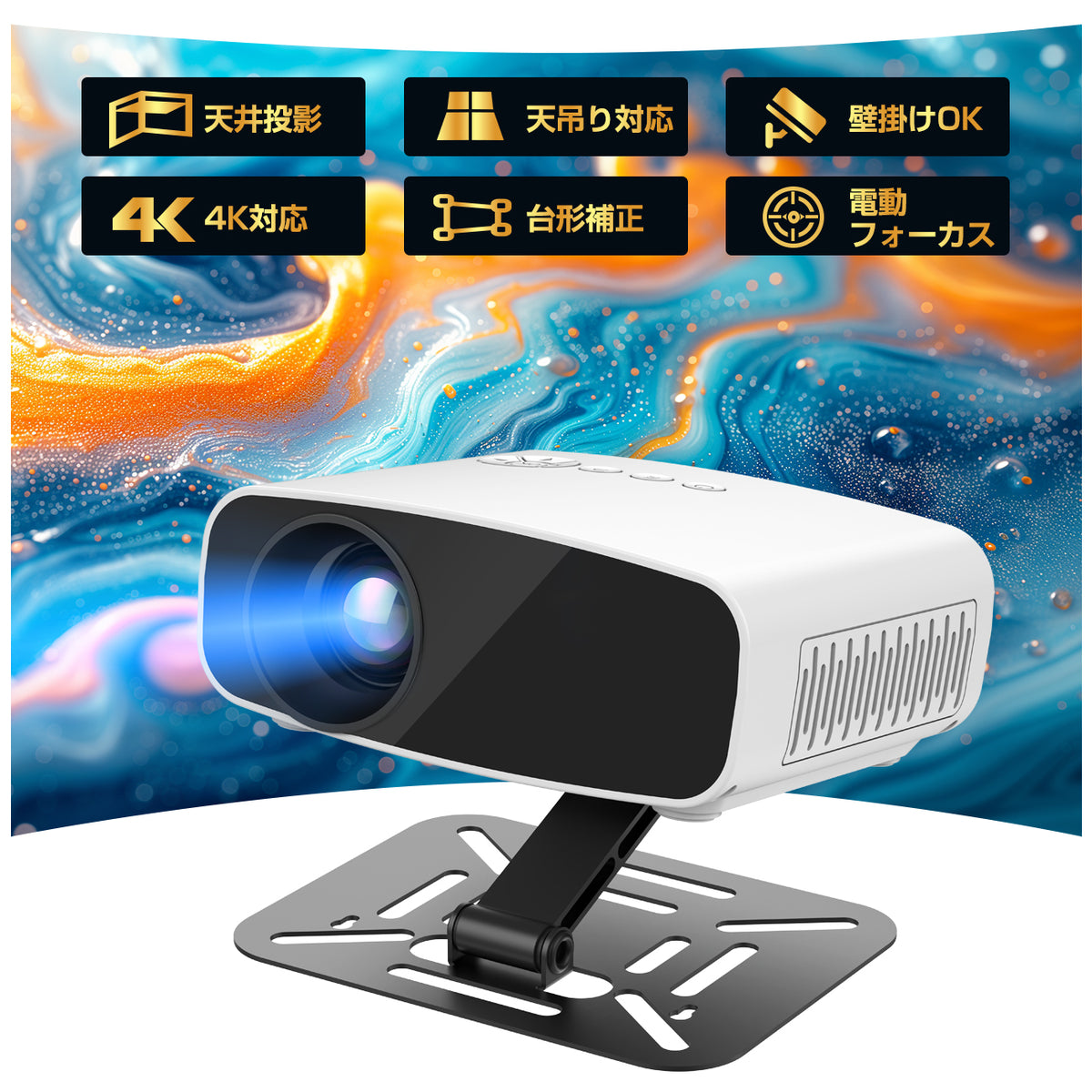
Aestiquo X26 Compact Projector | 180° Rotation, Electric Focus | Ceiling Projection Compatible
Aestiquo X26 Compact Projector | 180° Rotation, Electric Focus | Ceiling Projection Compatible
SKU:LHPJ007
Out of stock
Couldn't load pickup availability
- Free Shipping on Orders Over ¥3,000 in Japan
- 100% Secure Payment, Encrypted Protection
- 30-Day Money-Back Guarantee, perfect for gifts with peace of mind
share
AESTIQUO X26 / HOME CINEMA
Change the projection angle and
bring movie time to your everyday room.
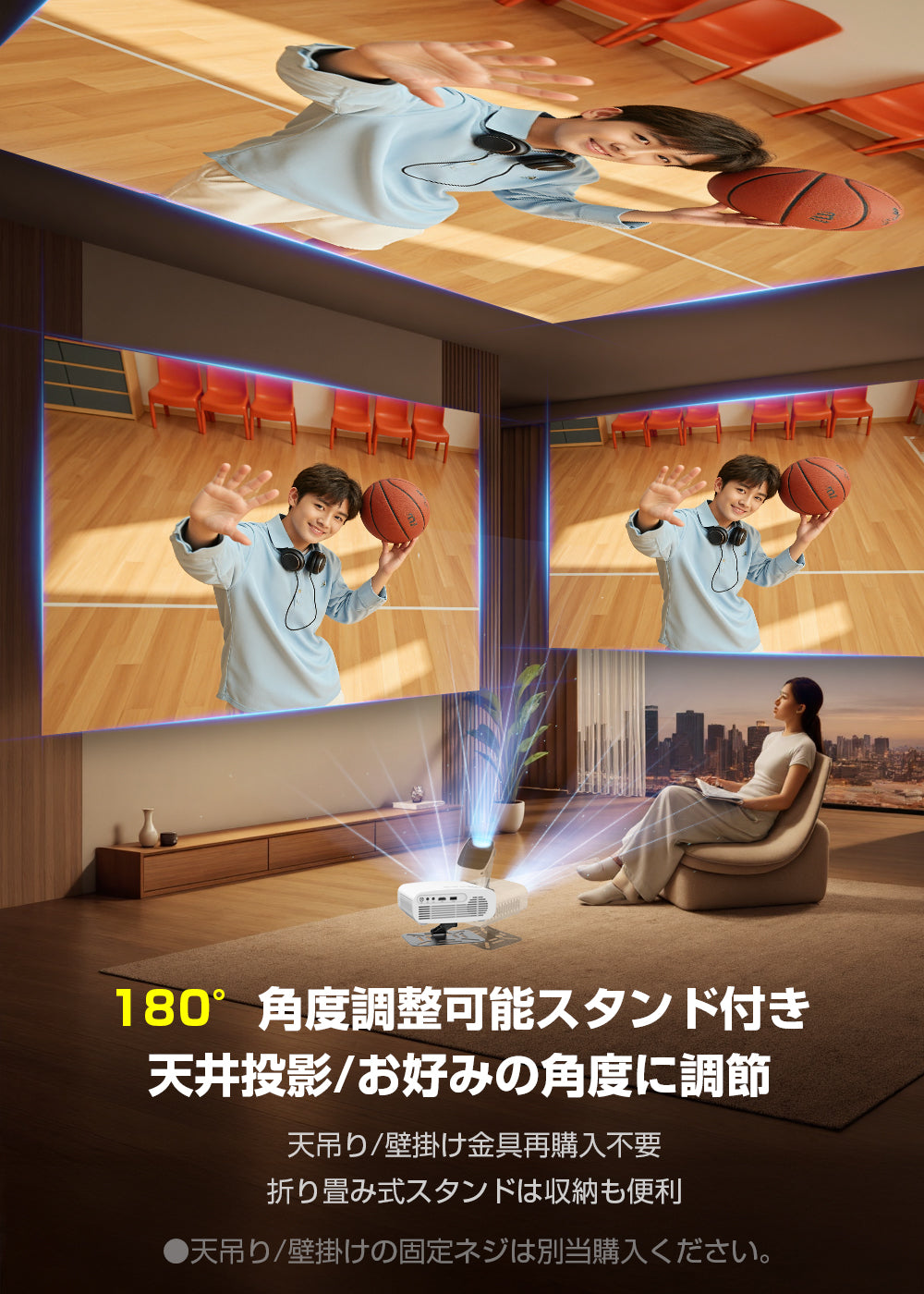
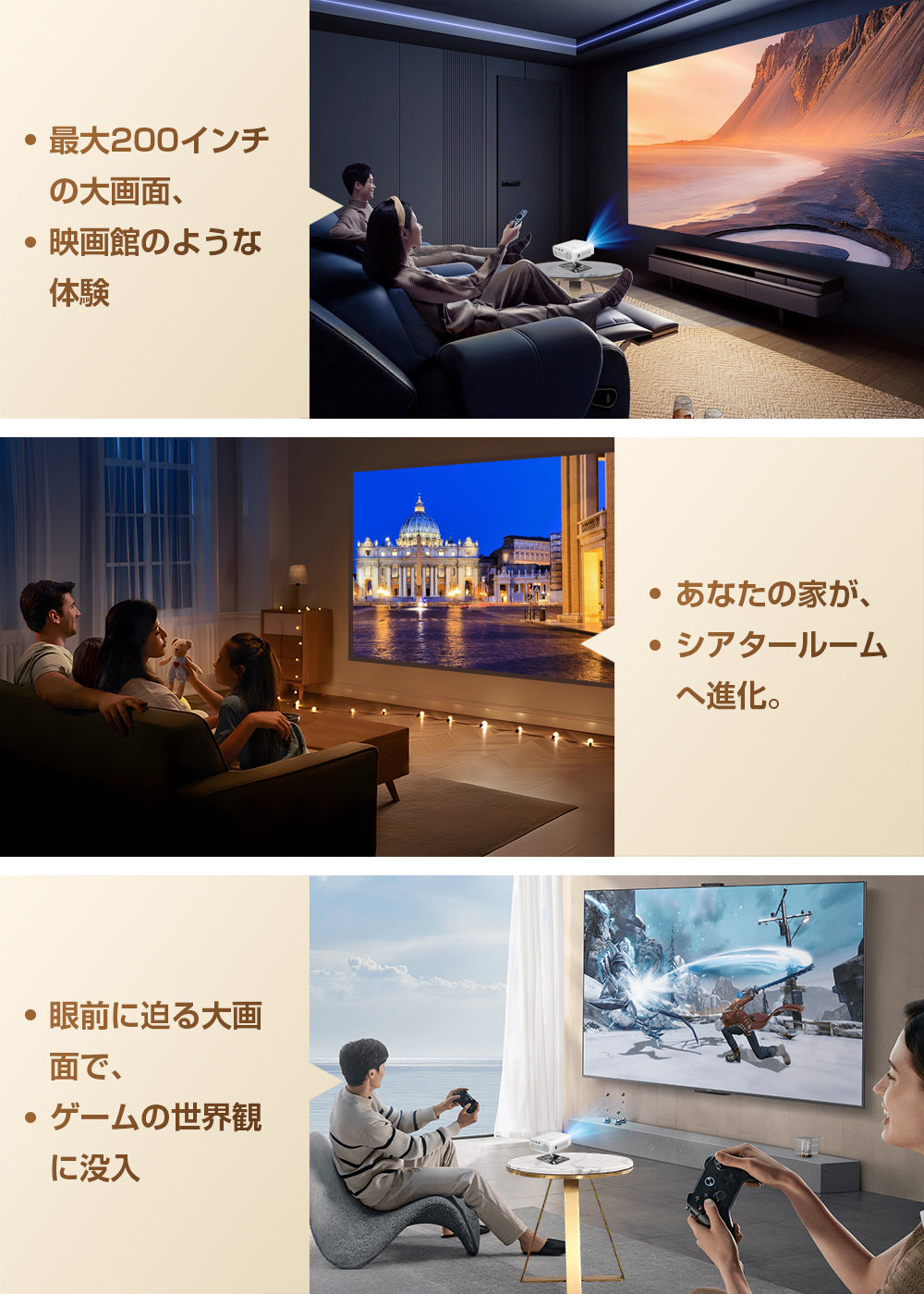
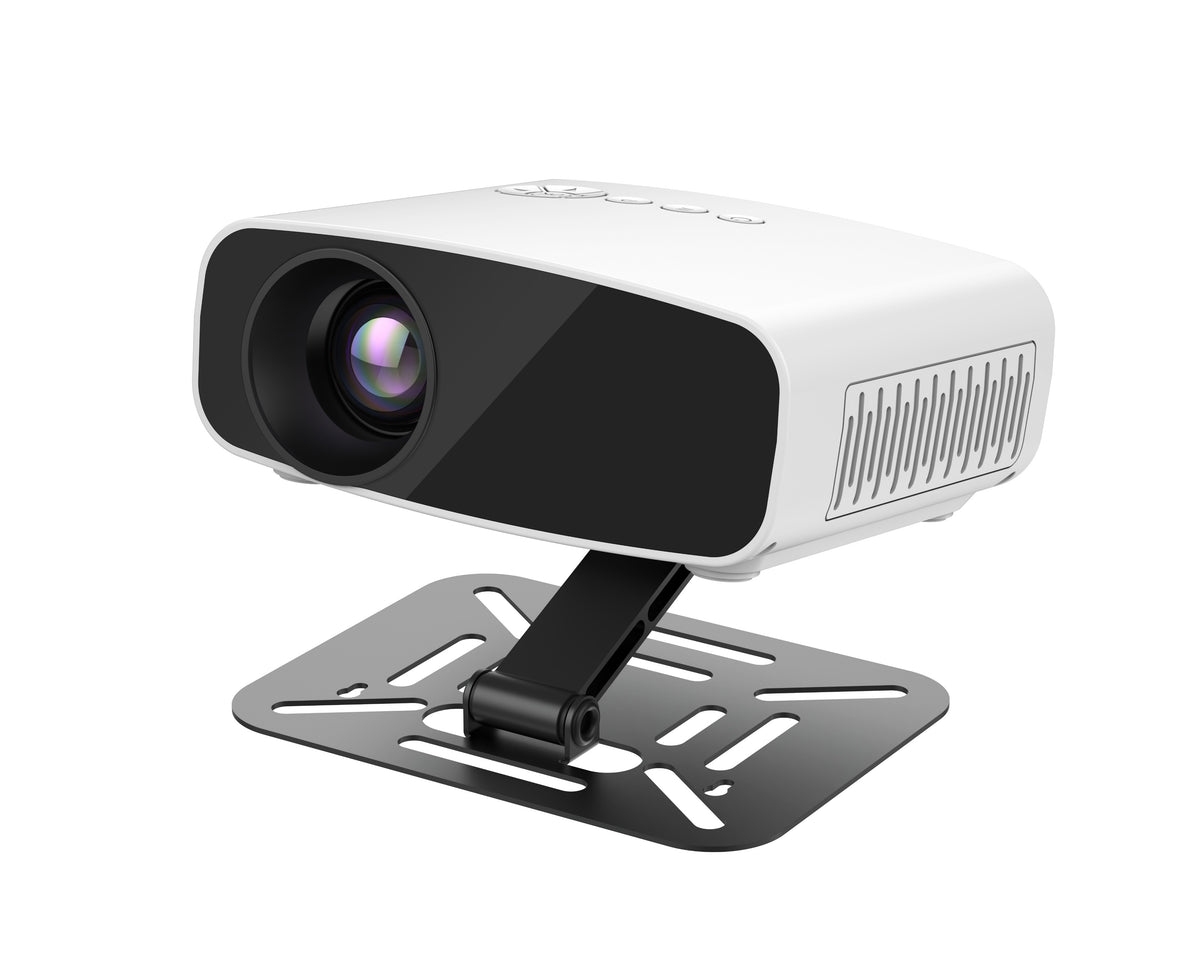
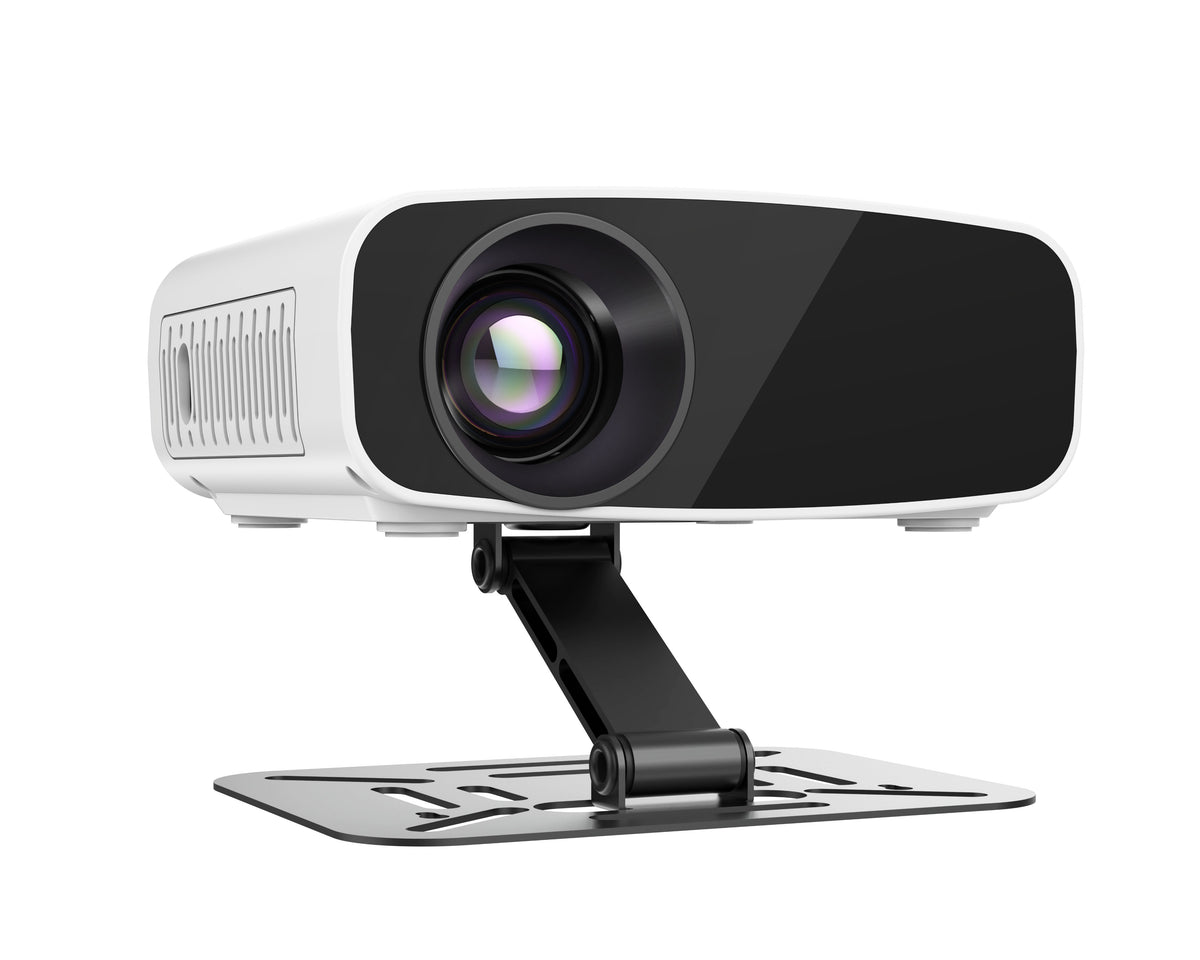
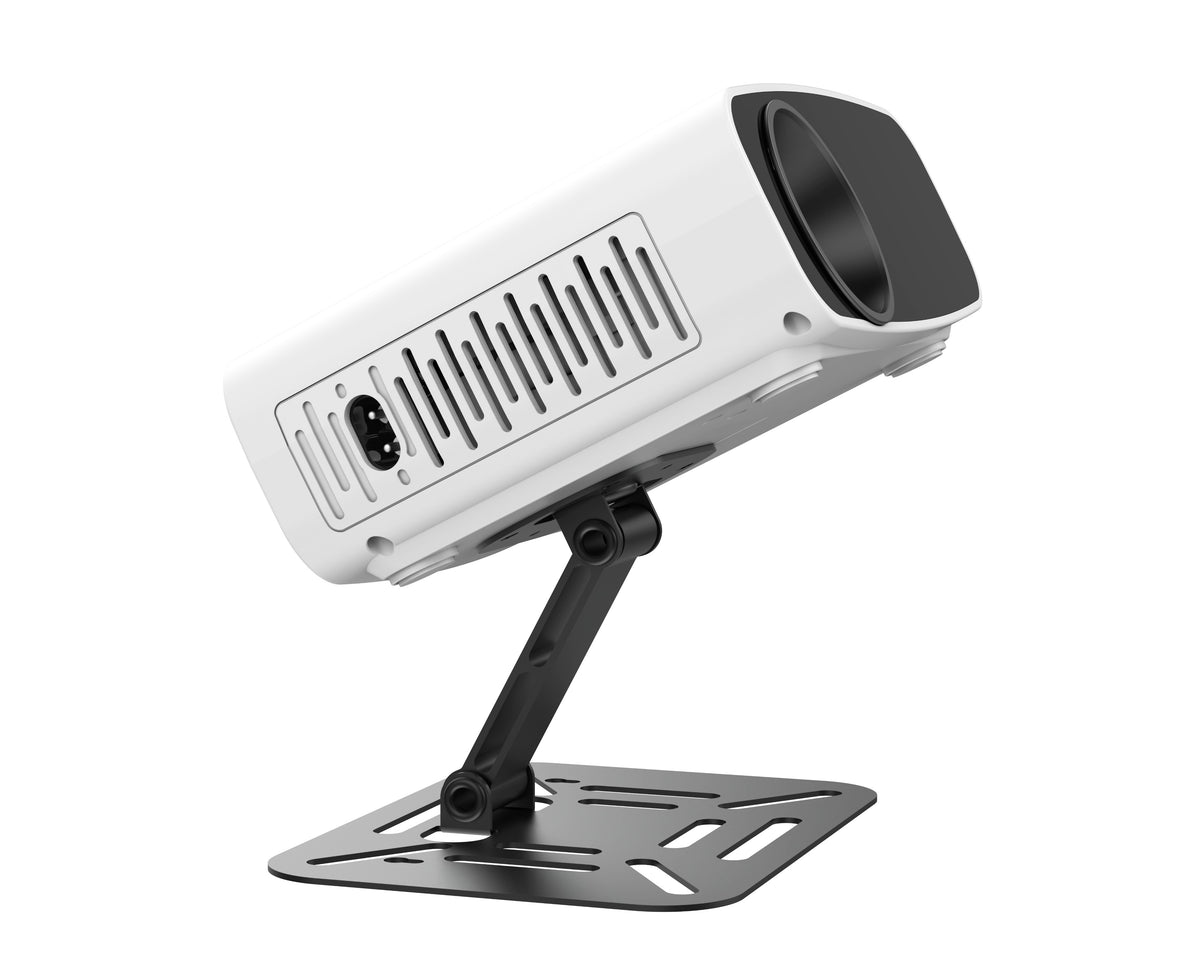
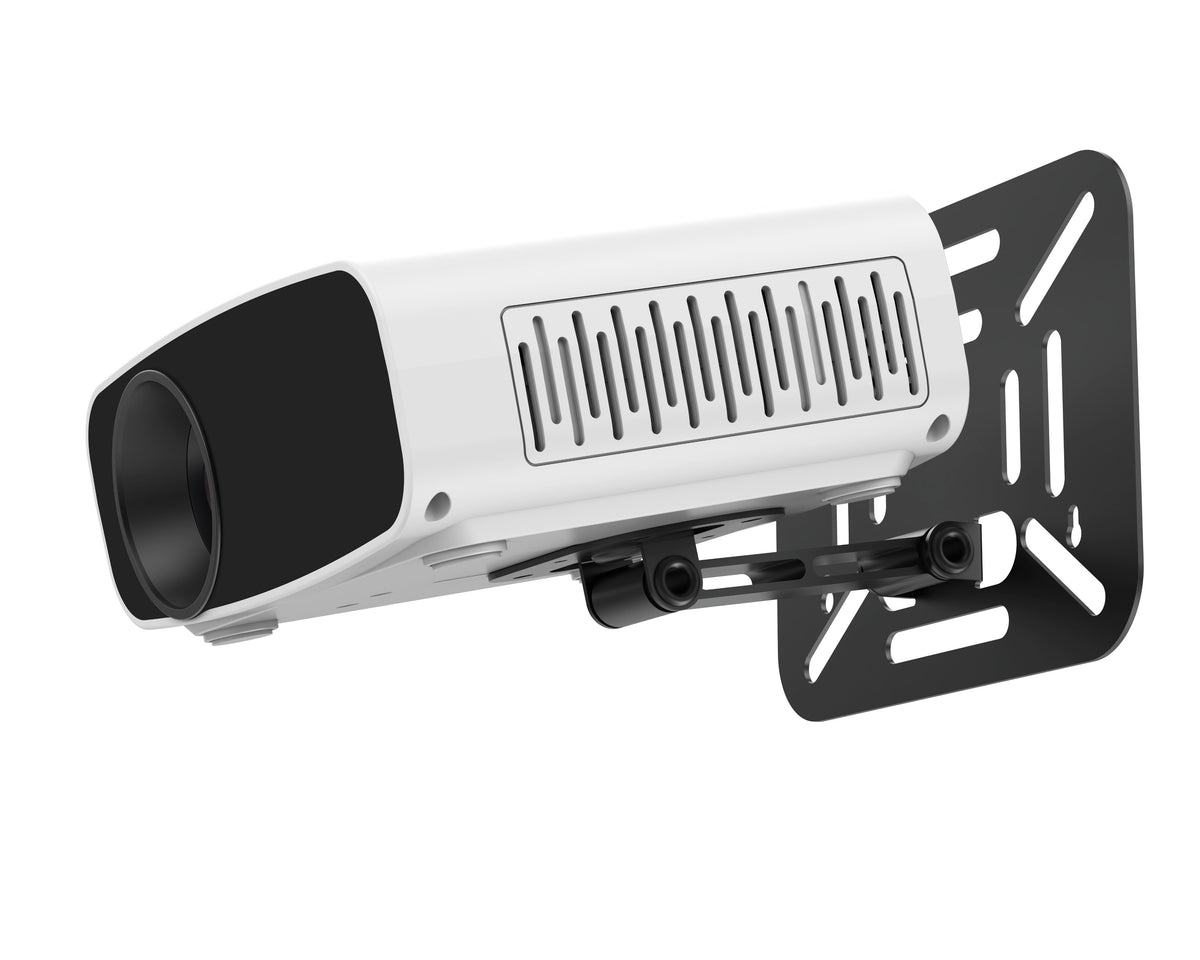
Enjoy movies projected on the wall, or change the stand angle to project onto the ceiling. The Aestiquo X26 is a compact projector equipped with a 180° adjustable stand and electronic focus. Simply dim the room lights and position the screen where it is easy to see, and your relaxation spot becomes a viewing space.
What you need to know about connectivity before purchasing
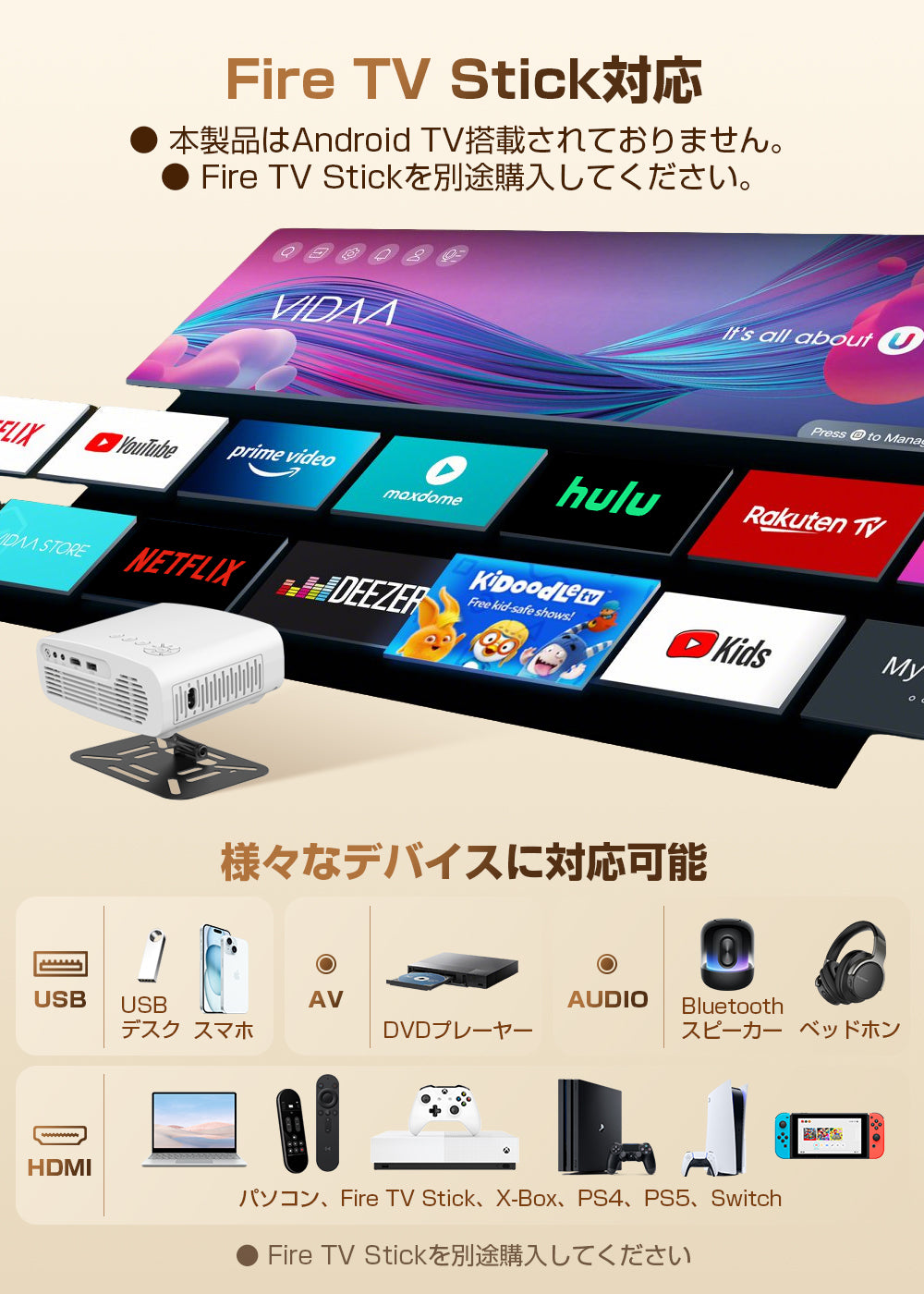
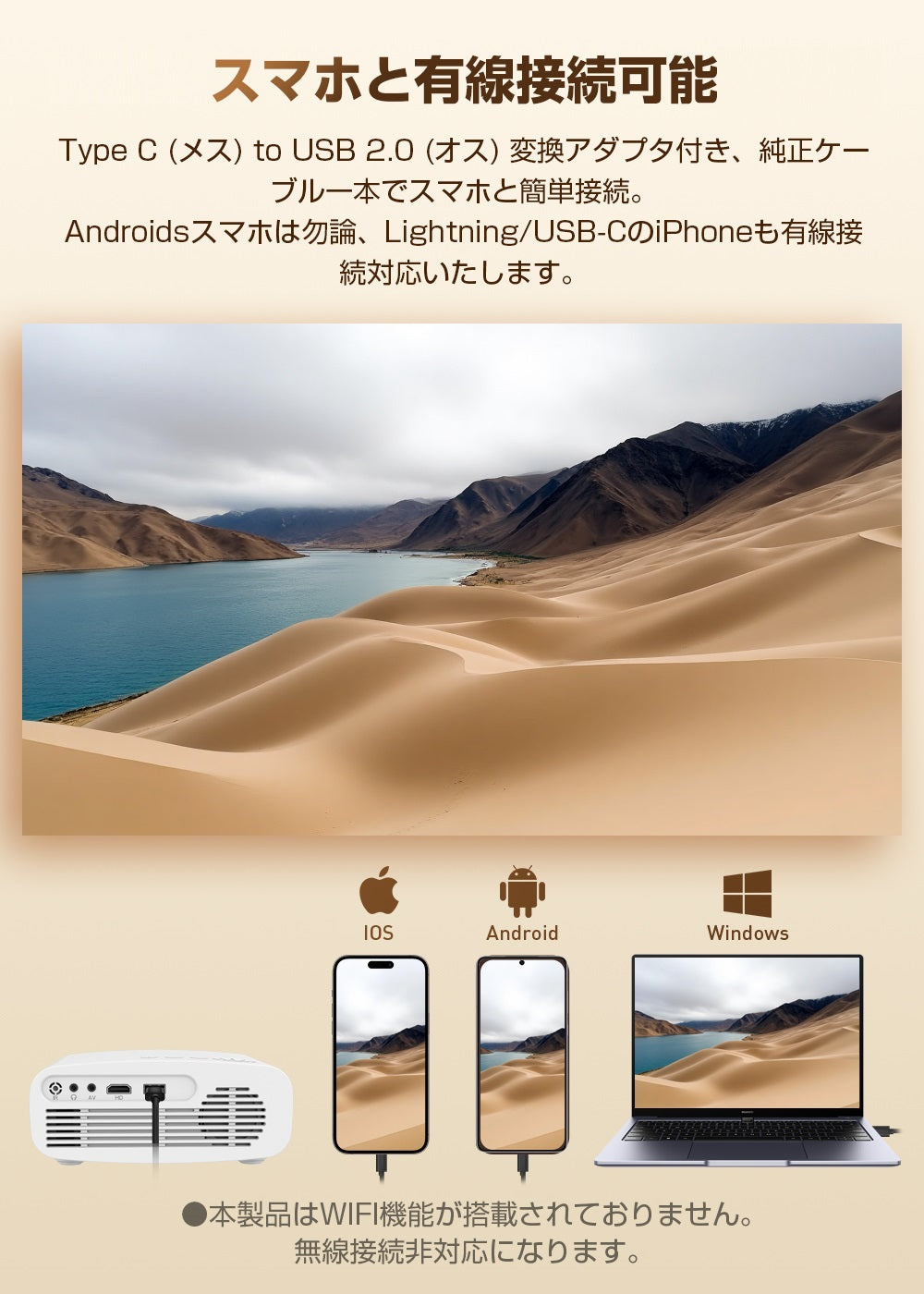
This product does not have Wi-Fi or Android TV. Smartphones are used with a wired connection. If you want to enjoy streaming videos, please consider using external devices such as a compatible TV stick sold separately. Bluetooth is for connecting to audio devices and does not have a function to wirelessly transmit video.
Adjust the placement and focus to suit your seat
01 / ANGLE
180° adjustable stand
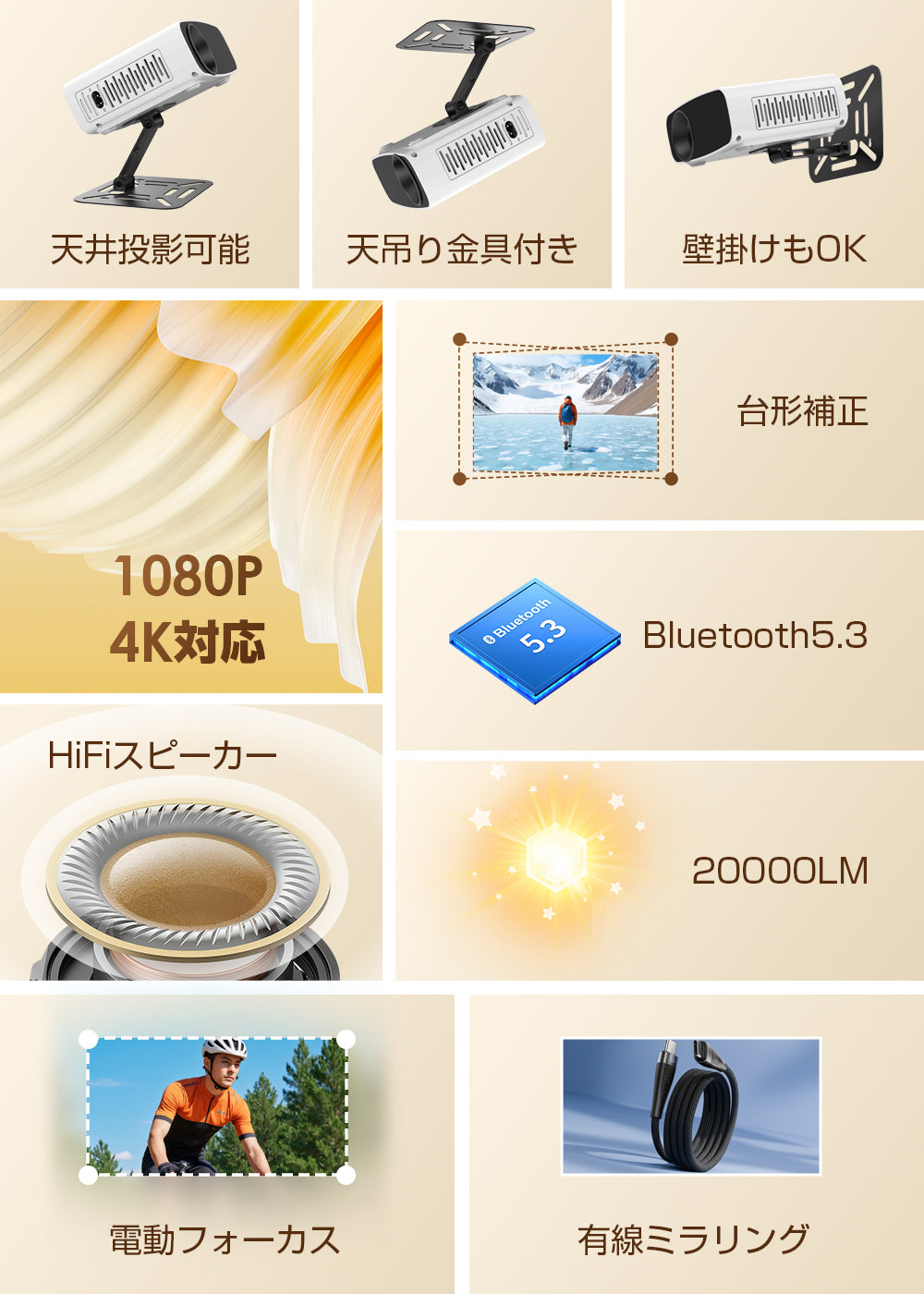
Adjust the orientation of the main unit with the included stand, and install it according to the wall or ceiling projection. First, place it on a stable, level surface, and adjust the position of the projection surface and the main unit. Ceiling projection and ceiling-mounted installation are different. When wall-mounting or ceiling-mounting, check the mounting screws suitable for the installation surface and sufficient load capacity, and install it safely.
02 / FOCUS
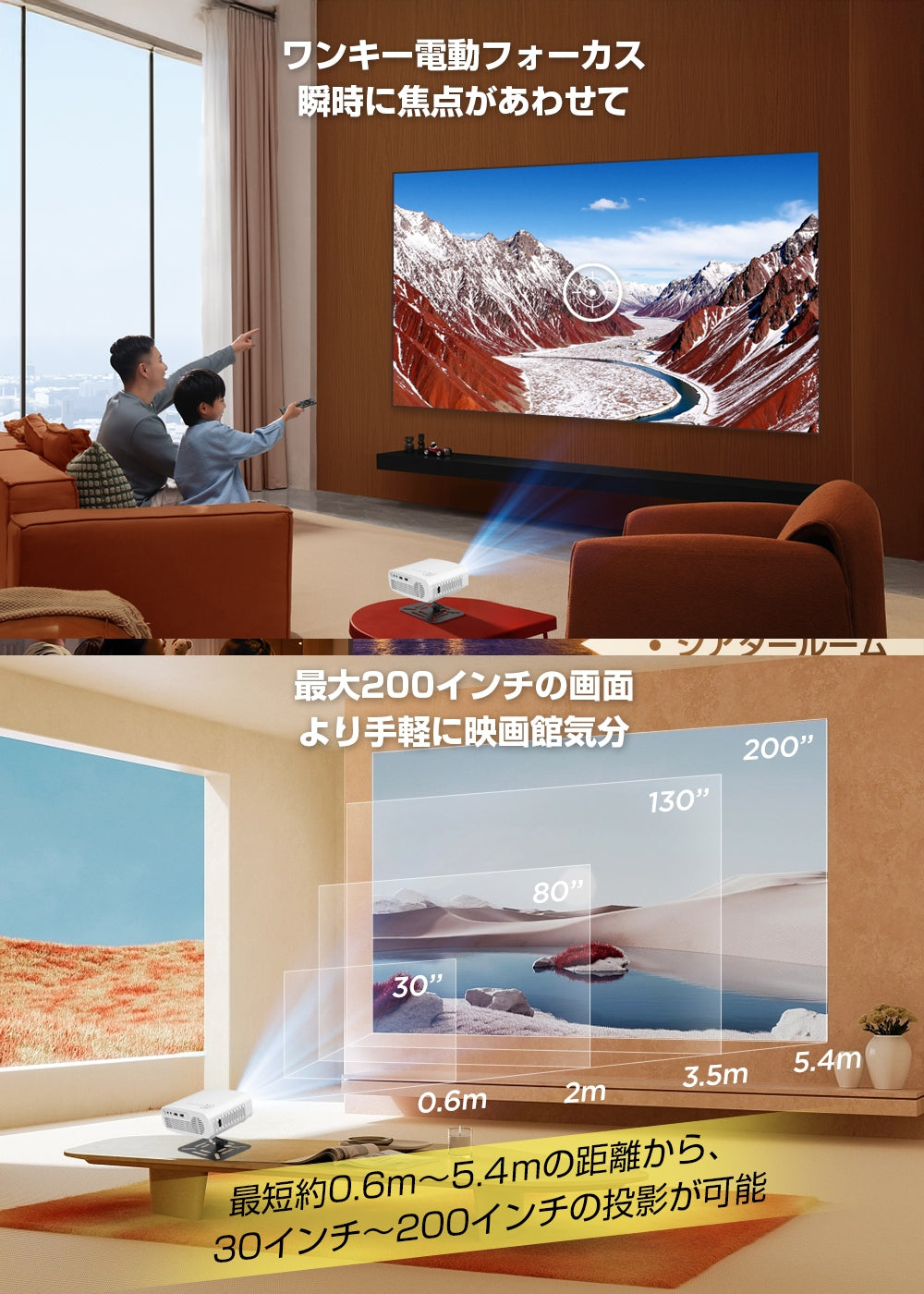
Electronic focus adjustment with remote control
While watching the video, you can adjust the focus with F+/F- on the remote control. After changing the installation location or projection distance, please check the outlines of the letters and images and readjust. Electronic focus is a function that adjusts with button operation, not autofocus that automatically keeps adjusting the focus.
03 / SCREEN
Adjust the screen with vertical keystone correction
When the top and bottom edges of the screen have different widths, adjust the keystone correction from the remote control or settings screen. Do not rely solely on correction, and the basic principle is to project from the front of the projection surface as much as possible. The appearance changes depending on the projection distance, surrounding brightness, and the condition of the wall or screen. Recommended for use in a dark room.
Choose how to enjoy it according to the connected device
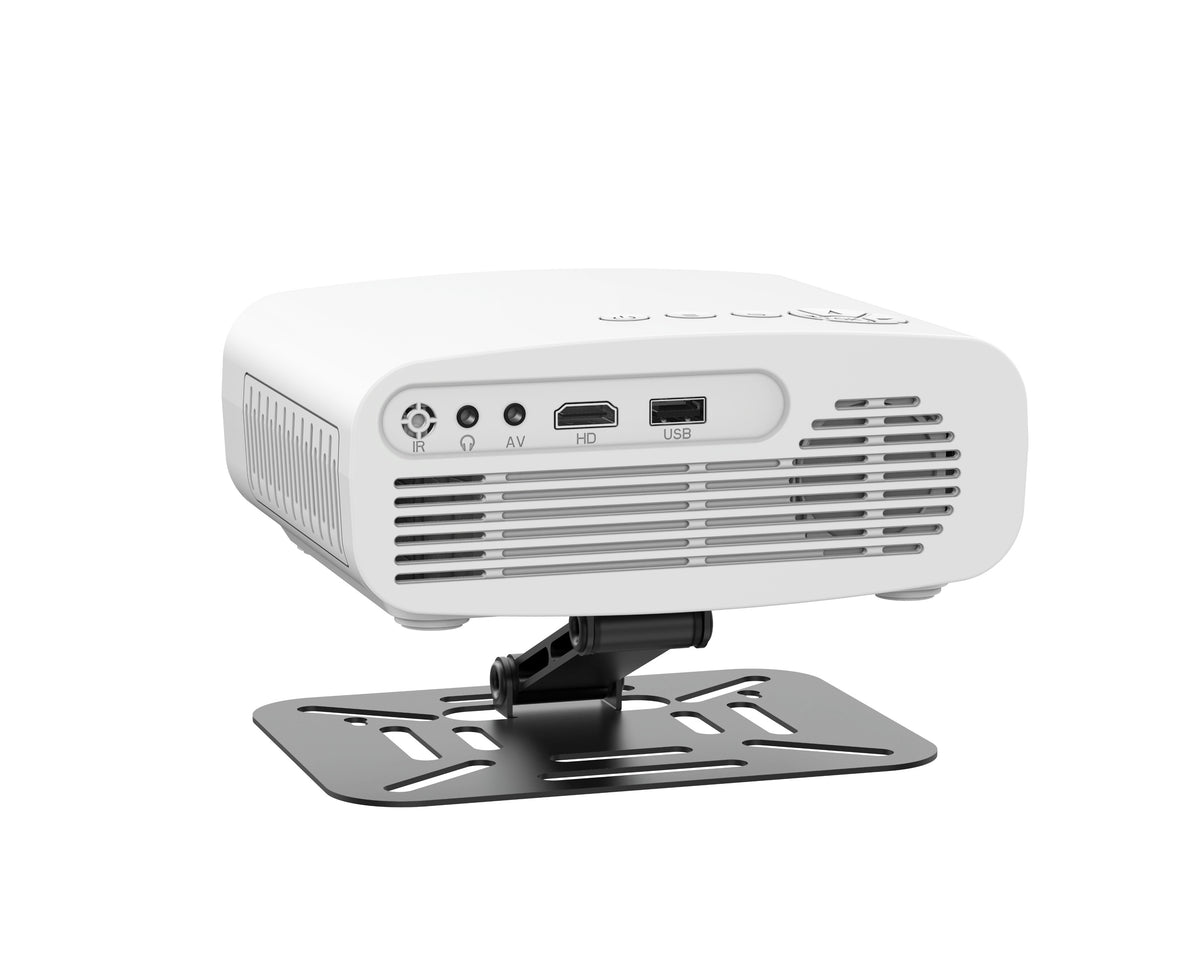
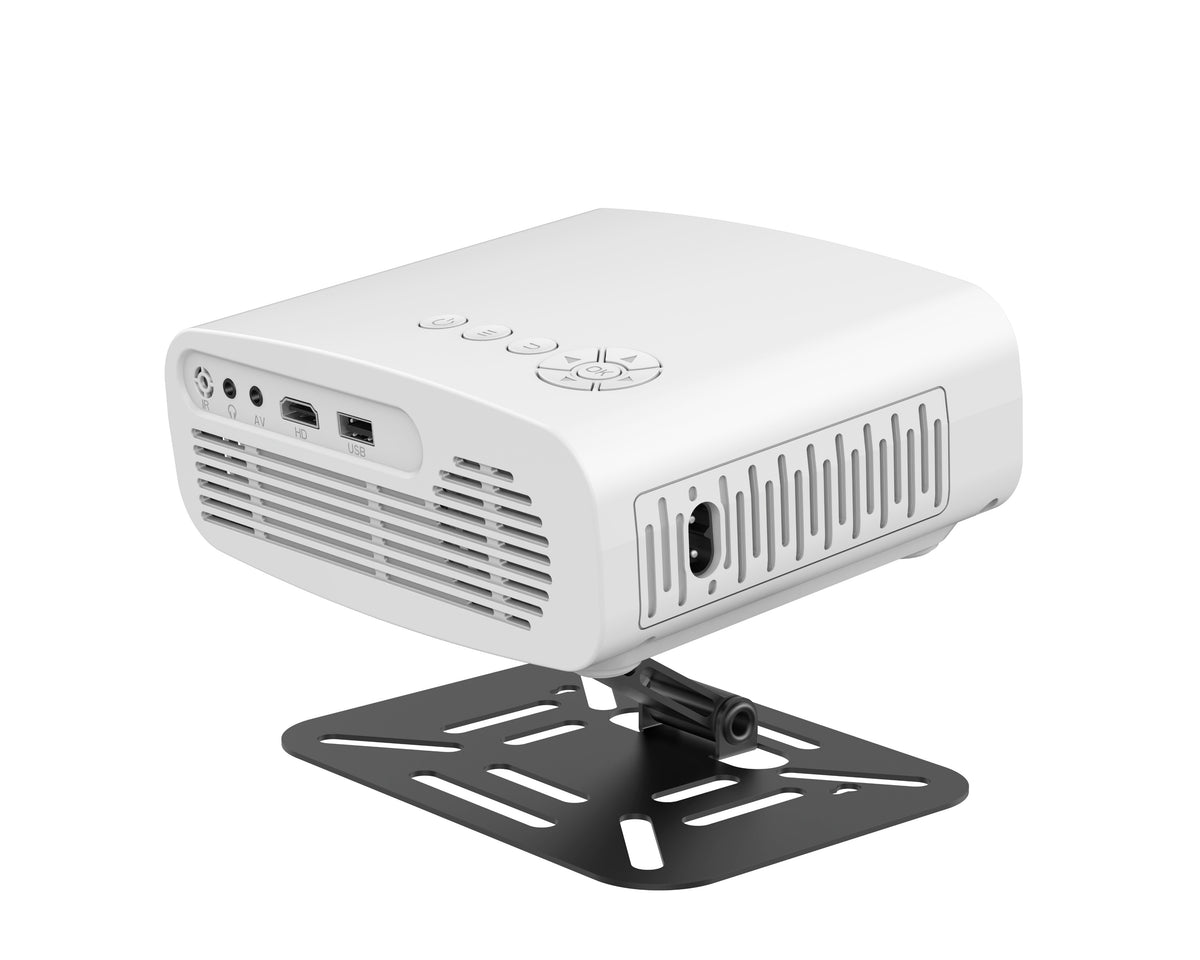
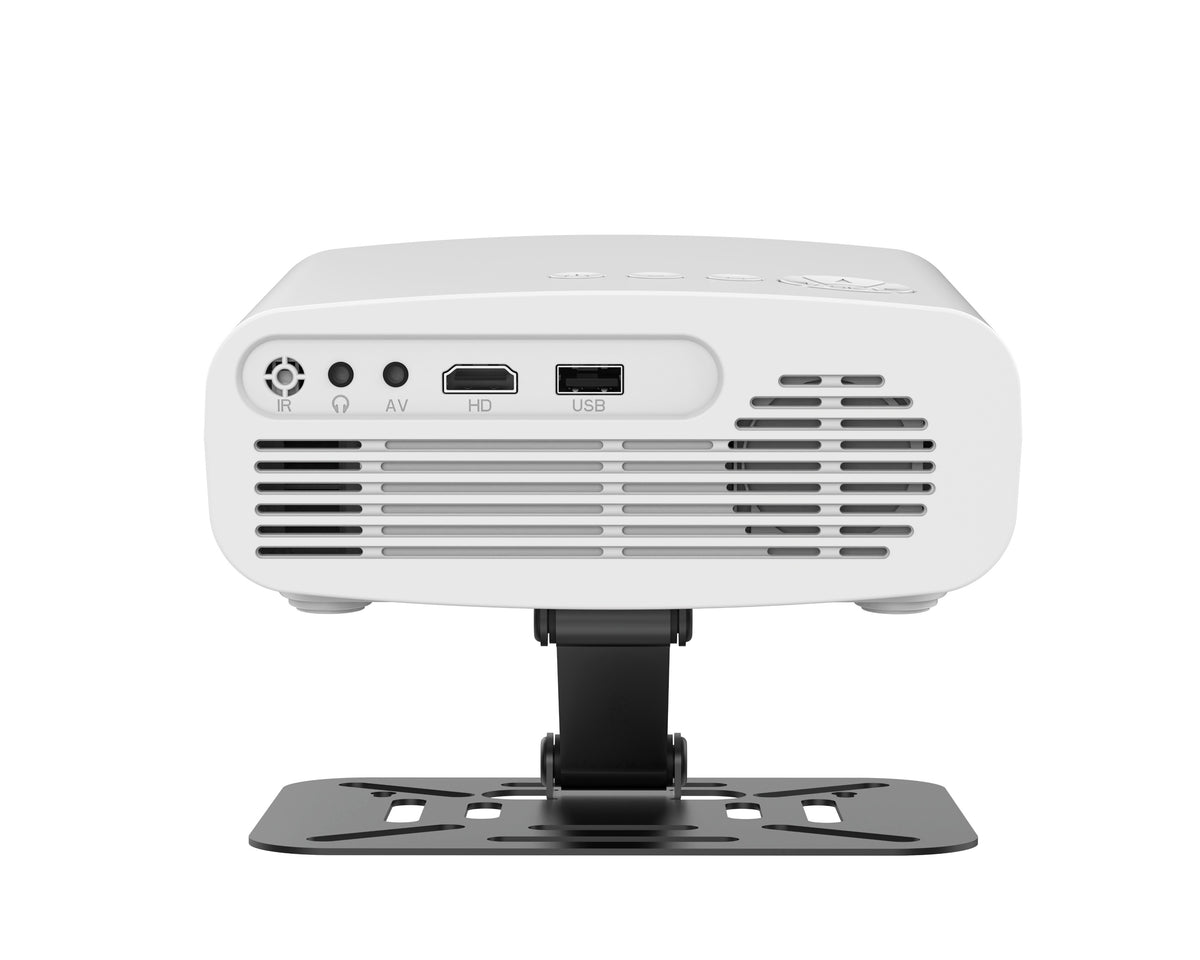
To a computer or external player via HDMI
Connect a computer or video device that supports HDMI input, and select the HDMI input source on the main unit. When using a TV stick, etc., power, network, and service contracts for each device are required separately. Usage conditions vary depending on the connected device, output settings, and content.
Wired mirroring for smartphones
The instruction manual guides you on a wired connection using a compatible cable and designated app, or a method using a compatible HDMI conversion adapter. Since the connection method varies depending on the device model, OS, and video output support, please check your smartphone before purchasing. It does not guarantee operation on all devices.
Copyright-protected content such as Netflix and Prime Video may not be displayed when mirroring a smartphone. Simply connecting a cable does not mean you can watch all video apps.
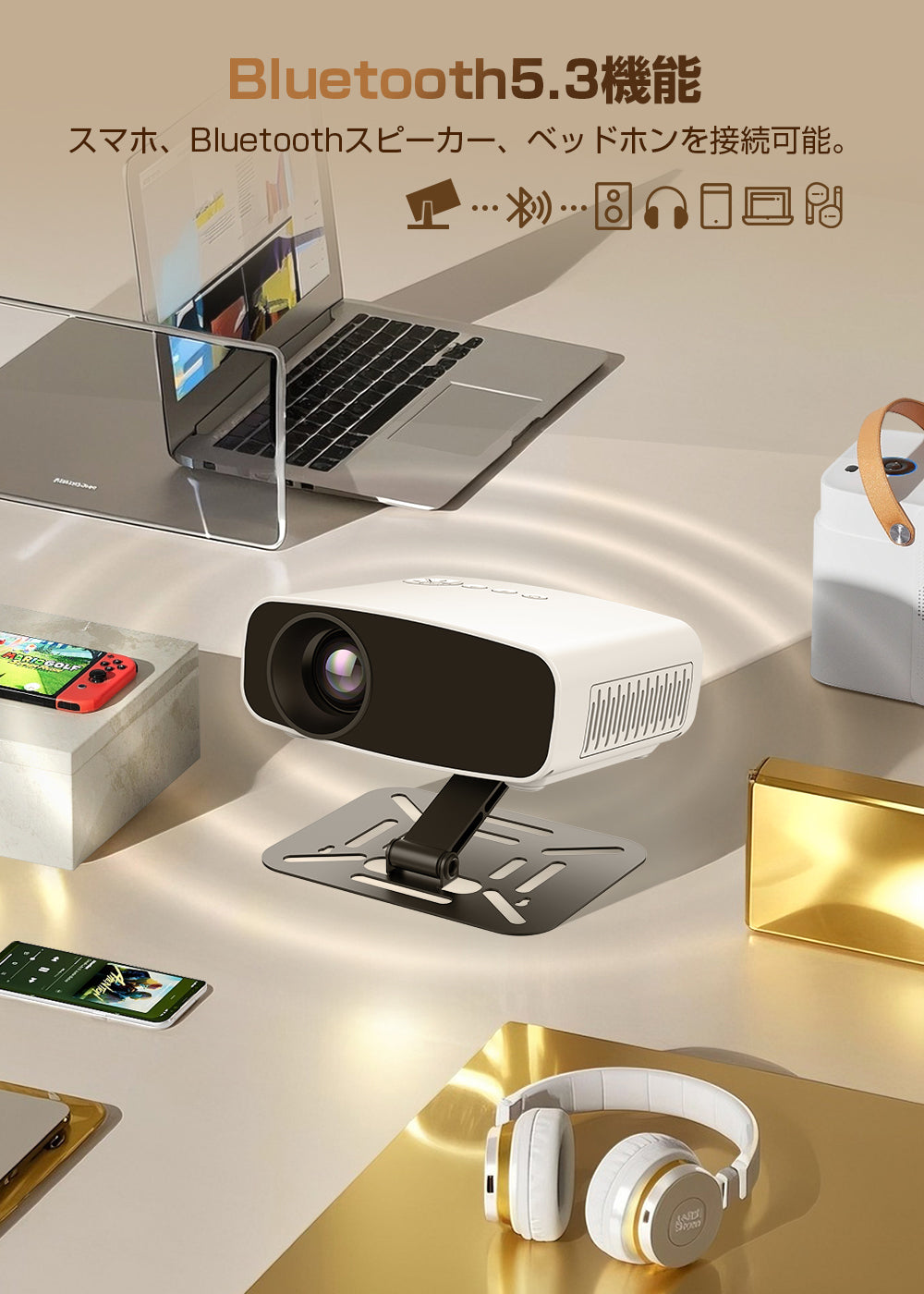
USB memory and Bluetooth audio connection
You can select and play compatible photo, music, and video files in the USB memory. Even if the file extension is the same, it may not play depending on the codec and data specifications. When using compatible audio devices such as Bluetooth speakers, please search and pair from the settings screen.
First projection, 4 steps
- Check the installation and power.Place it in a stable location and connect the power to the outlet. Follow the instruction manual to ensure a gap of 30cm or more between the main unit and the wall, and do not block the ventilation holes.
- Connect the video device.Connect with a compatible cable, turn on the power, and select the correct input source.
- Adjust the orientation, shape, and focus.After adjusting the stand angle and installation position, adjust the keystone correction and F+/F- to create an easy-to-see screen as needed.
- Check the volume and surroundings and enjoy.Dim the lights and adjust the volume. When moving or not using it for a long time, turn off the power and unplug it.
Frequently Asked Questions
Can I project wirelessly from my smartphone?
This product does not have Wi-Fi. Please use a wired connection using a compatible cable or similar for your smartphone. You cannot send video via Bluetooth.
Does it look the same in a bright room?
If the surrounding light is strong, the image may feel dim. Please use it in a room with closed curtains and dimmed lights. The projection scene in the product image is for illustrative purposes.
What if the screen is blurry?
Please check the focus, installation angle, projection distance, and lens cleanliness. Readjustment is required after moving the main unit.
For safe use
Do not peer into the lens while it is operating. When children use it, an adult should supervise, and please be careful of the high temperature near the exhaust vent, falling, and cable snagging. Avoid use in rainy, wet, or humid places, and ensure ventilation. This product is not designed to run on a mobile battery.
Please check the instruction manual for details on connection, installation, and operation. Please prepare 2 AA batteries separately for the remote control.
関連資料:
製品取扱説明書(PDF)